Getting Started Guide
Everything you need to know about Sovereign Tax — from first launch to filing your taxes.
First Launch & Basic Workflow
Sovereign Tax is a self-sovereign Bitcoin tax calculator that runs entirely on your machine. There are no accounts, no cloud servers, and no third-party access to your data. Every transaction you import, every calculation the app makes, and every report it generates stays local and encrypted. This guide walks you through every feature so you can confidently manage your Bitcoin taxes on your own terms.
First Time Setup
When you open Sovereign Tax for the first time, you'll go through a quick three-step setup:
Accept the Terms of Service
Review and accept the Terms of Service. This is a one-time step.
Create a PIN
Choose a PIN (4 or more digits) that will protect your data. Your PIN is used to derive an encryption key — it is never stored anywhere. All of your data is encrypted with AES-256-GCM using a key derived from your PIN via PBKDF2 with 600,000 iterations.
Start using the app
You're in. Import your exchange CSVs, review your data, and generate tax reports.
Don't forget your PIN
Your PIN is the only way to unlock your data. If you lose it, your data cannot be recovered. This is by design — there are no backdoors, no cloud recovery, and no way to reset it.
Installation
macOS
Sovereign Tax is signed and notarized by Apple. Double-click the SovereignTax-macOS.dmg file, drag the app icon into your Applications folder, then open it from Applications. No extra approval steps are needed.
Windows
Run SovereignTax-Windows.exe to install. You may see a SmartScreen warning on first launch — click "More info" and then "Run anyway". This is a one-time approval and is standard for independently distributed Windows software.
Linux
Install the .deb package with: sudo dpkg -i SovereignTax-Linux.deb. Then launch Sovereign Tax from your application menu.
Returning Users
When you reopen the app, you'll see a lock screen. Enter your PIN to decrypt your data and pick up where you left off. Everything is stored locally on your machine.
Basic Workflow
Sovereign Tax follows a four-step workflow:
Import
Drop CSV files from each exchange — Coinbase, Kraken, Gemini, Swan, Strike, Cash App, and more. Columns are auto-detected. Enter the exchange name when prompted — this tags every transaction to the correct wallet for IRS per-wallet compliance. You can also add transactions manually.
Review & Assign Transfers
Open the Review view to see a guided checklist of everything that needs attention before filing. Assign source wallets on Transfer In rows so lots move to the correct wallet. Fix any wallet mismatches. Optionally optimize your lot selections with Specific ID to minimize taxes. See Review View and Wallets & Transfers for details.
Explore
View your holdings, compare accounting methods, simulate sales, and explore multi-year trends. Everything recalculates automatically when you change methods or add data.
Export
Generate IRS Form 8949 in PDF, CSV, or TurboTax format. Ready to file or hand to your accountant.
Sidebar Navigation
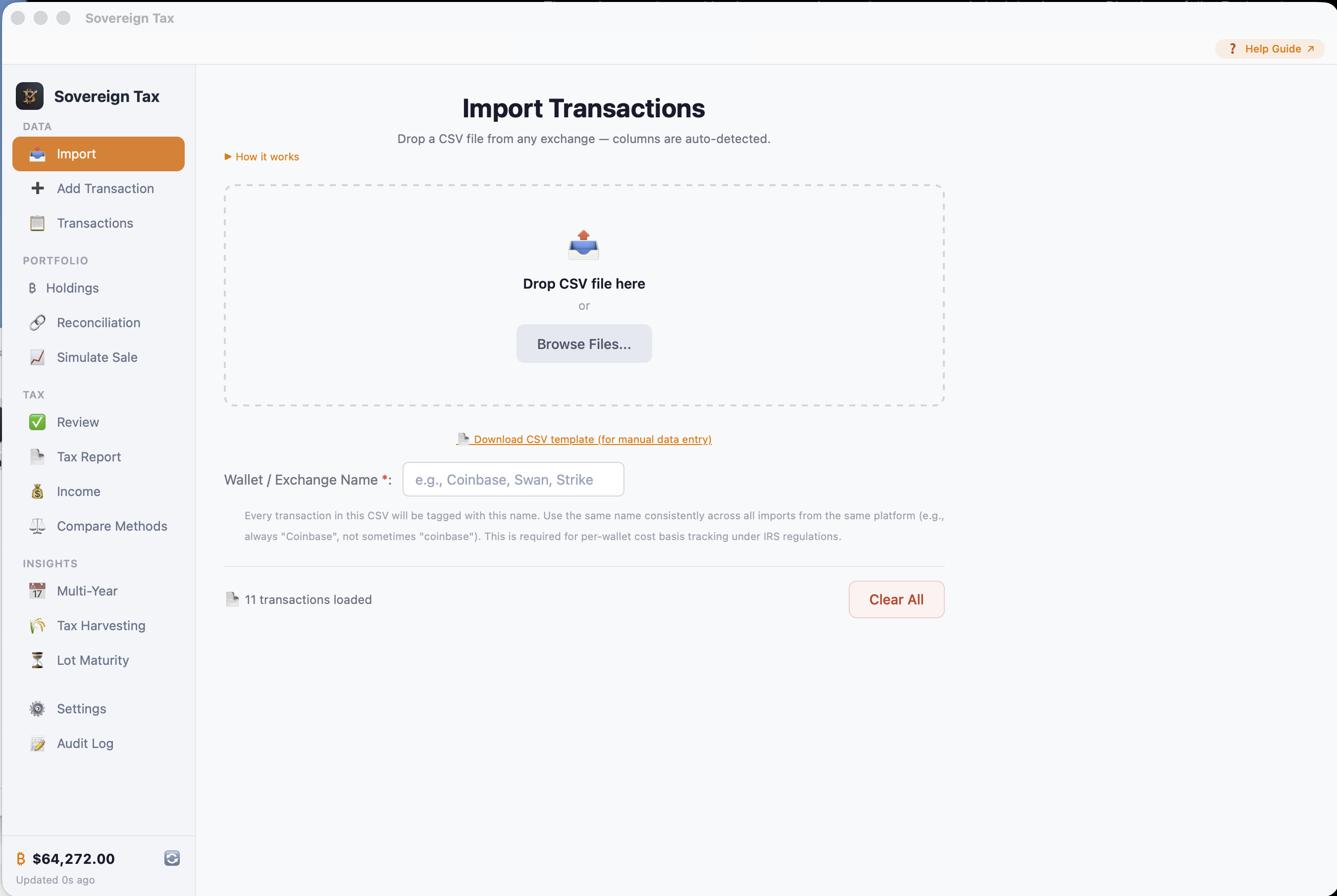
The app sidebar is organized into four groups:
- Data: Import, Add Transaction, Transactions
- Portfolio: Holdings, Reconciliation, Simulate Sale
- Tax: Review, Tax Report, Income, Compare Methods
- Insights: Multi-Year, Tax Harvesting, Lot Maturity
Settings and Audit Log are at the bottom of the sidebar.
Importing Transactions
What It Is
The Import Data view is your starting point for getting transaction data into Sovereign Tax. It accepts CSV files exported from any Bitcoin exchange and uses an intelligent auto-detection engine to match your file's column headers to the correct data fields. This means you don't need to manually format your CSVs or worry about different exchange formats — the app handles it.
How It Benefits You
Instead of manually entering dozens or hundreds of transactions, you can import your entire exchange history in seconds. The auto-detection supports 60+ column name variations, so whether you use Coinbase, Kraken, Gemini, or a smaller exchange, your data is mapped correctly. The app also remembers your column mappings per exchange, making future imports even faster.
Supported Exchanges
The import engine recognizes 60+ column name variations across major exchanges, including:
- Coinbase & Coinbase Pro (Advanced Trade)
- Kraken
- Gemini
- Strike
- Cash App
- River
- Swan
- Bisq
- Any custom CSV with date, amount, and price/total columns
How to Import
Click Import Data in the sidebar. Drag and drop your CSV file onto the drop zone, or click "Browse Files..." to select it. Enter the exchange name (required) so the app tags your transactions to the correct wallet for per-wallet cost basis tracking.
After selecting a file, the app reads the headers and auto-maps them. Green checkmarks appear next to matched fields. If everything looks right, click "Import Transactions".
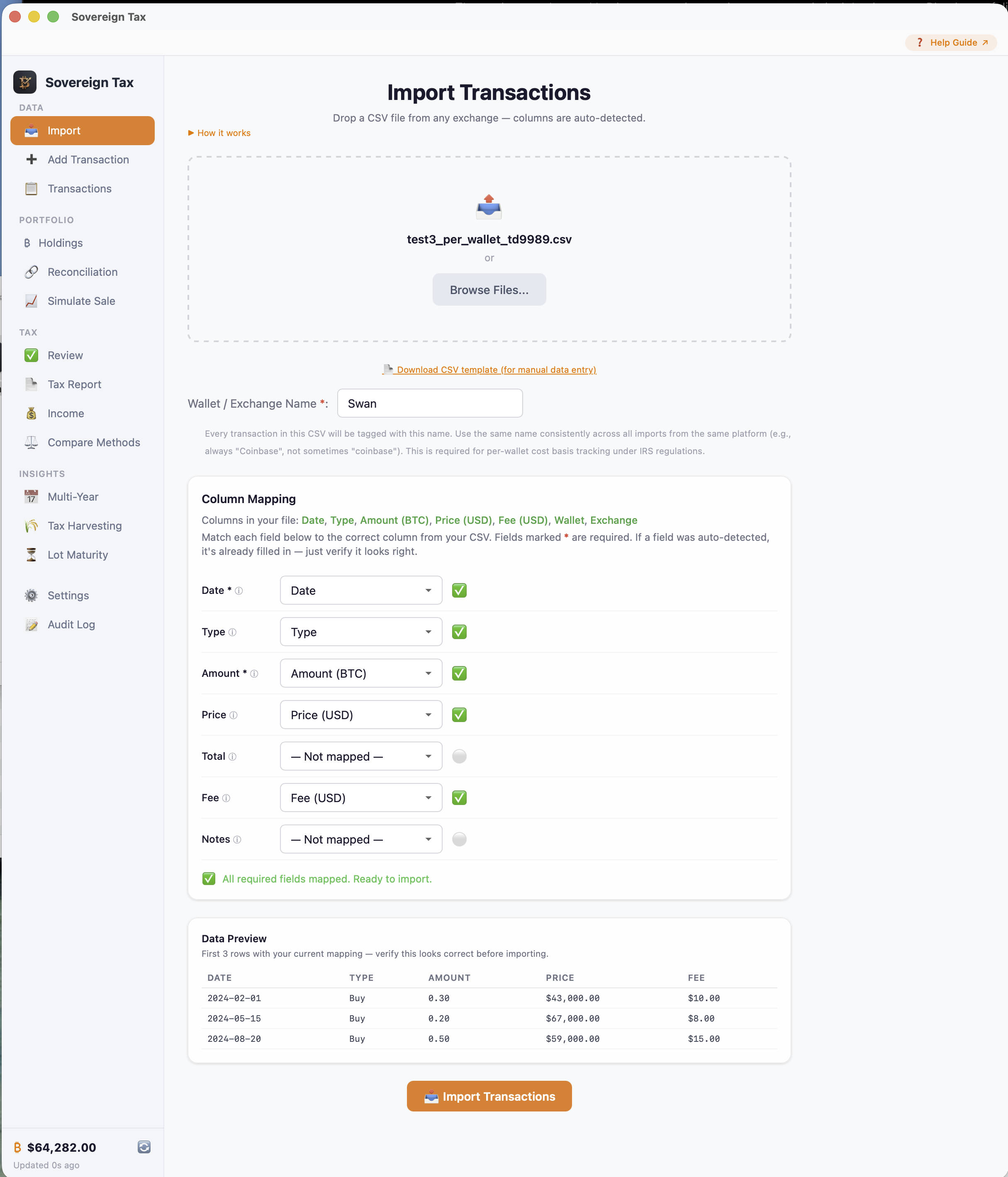
Tip: Exchange name is required
The exchange name field is required before you can import. It serves two purposes: (1) it tags all imported transactions to that wallet for IRS per-wallet cost basis tracking, and (2) it saves your column mapping so future imports from the same exchange are pre-filled automatically. Use consistent naming — always "Coinbase", not sometimes "coinbase" or "COINBASE".
Manual Column Mapping
If your CSV uses non-standard column names, some fields may show "— Not mapped —". Click the dropdown next to each unmapped field and select the matching column from your CSV. At minimum, you need Date, Amount, and either Price or Total mapped — without a price or total, the app can't calculate your cost basis.
Data Preview
Before importing, the app shows a preview of the first 3 rows with your current mapping so you can verify the data looks correct — amounts, dates, and prices should make sense.
Column Reference
| Field | Required | Description |
|---|---|---|
| Date | Yes | When the transaction occurred. Supports most formats (MM/DD/YYYY, YYYY-MM-DD, ISO 8601, etc.) |
| Type | No* | Buy, Sell, Send, Receive, etc. If not mapped, you set a default type for all rows. |
| Amount | Yes | The BTC quantity — how much Bitcoin was transacted (not the dollar value). |
| Price | Yes* | The USD price of one Bitcoin at the time of the transaction. Required unless Total is mapped. |
| Total | Yes* | The total USD value (Amount × Price). Required unless Price is mapped. You need at least one of Price or Total. |
| Fee | No | Trading fees. Added to cost basis on buys, subtracted from proceeds on sells. Defaults to zero. |
| Wallet | No | Which wallet or sub-account this transaction belongs to. Used for per-wallet cost basis tracking. |
| Exchange | No | The exchange or platform where the transaction happened. |
| Notes | No | Any extra notes or description. |
Bitcoin-Only Filtering
Sovereign Tax is a Bitcoin-only tool. If your CSV contains other cryptocurrencies (ETH, SOL, etc.), those rows are automatically filtered out. Only BTC and XBT transactions are imported. You'll see a count of skipped rows in the import summary.
Duplicate Detection
The app has two layers of duplicate protection:
- File-level: If you import the same CSV file twice, the app recognizes the file hash and warns you before proceeding.
- Transaction-level: Individual transactions are de-duplicated by date, amount, and exchange. Even if you import overlapping files, duplicates are automatically skipped.
Donation Auto-Detection
If your CSV includes donation transactions, the import engine automatically detects them. Keywords like "donation", "gift", "charitable", and "charity" in the type column are recognized and classified as Donation transactions. FMV is carried from the price column.
Default Transaction Type
Some exchange exports don't include a "Type" column. When no Type column is mapped, the app shows an orange info box asking you to select a default type (Buy, Sell, Transfer In, or Transfer Out) that applies to every row in the file.
Dual-Column Format
Some exchanges (like Kraken) use a dual-column format with Received Quantity / Received Currency and Sent Quantity / Sent Currency instead of a simple Amount column. Sovereign Tax auto-detects this format and handles it correctly — classifying transactions as Buy, Sell, Transfer In, or Transfer Out based on which currency is BTC.
Understanding Your Data
Transactions View
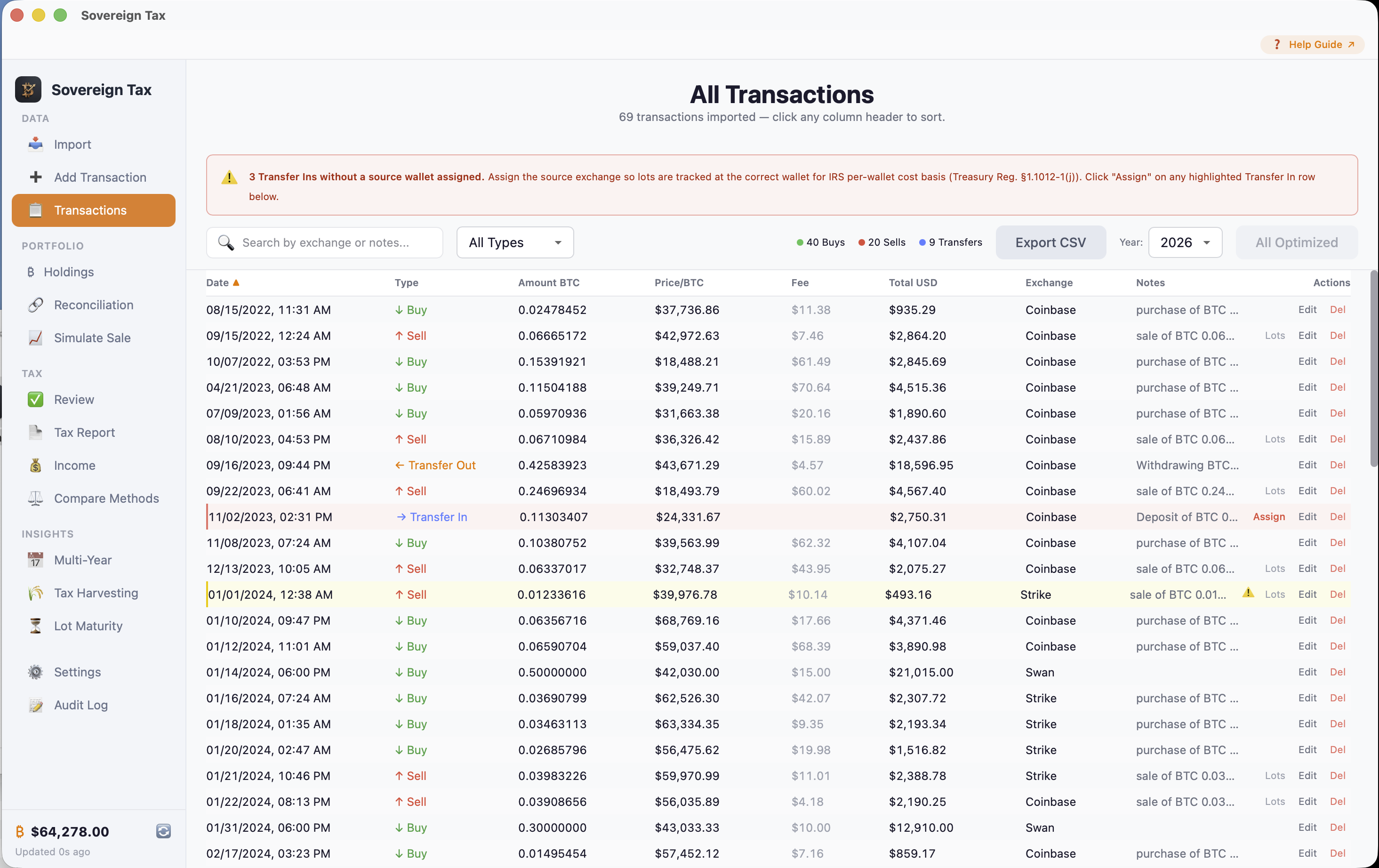
The Transactions view is your command center. It displays all your buys, sells, transfers, and donations in a sortable, filterable table. Each row has Edit and Delete buttons, and every sell/donation row has a Lots button for assigning Specific ID lot elections.
The toolbar includes a year selector and two powerful batch actions:
- Optimize All: One click to auto-assign optimal Specific ID lots to every unassigned sell in the selected year. The algorithm picks the lots that minimize your total tax — losses first, then smallest gains, accounting for short-term (37%) vs. long-term (15%) rates. A confirmation modal shows you the FIFO vs. Optimized comparison before you commit.
- Revert to FIFO: Remove all Specific ID elections for the year, returning everything to FIFO default.
How it benefits you: Full visibility into your transaction history, plus the ability to optimize your entire tax year in one click. No more manually picking lots for every sale — Optimize All does it automatically, and you can fine-tune individual transactions with the Lots button.
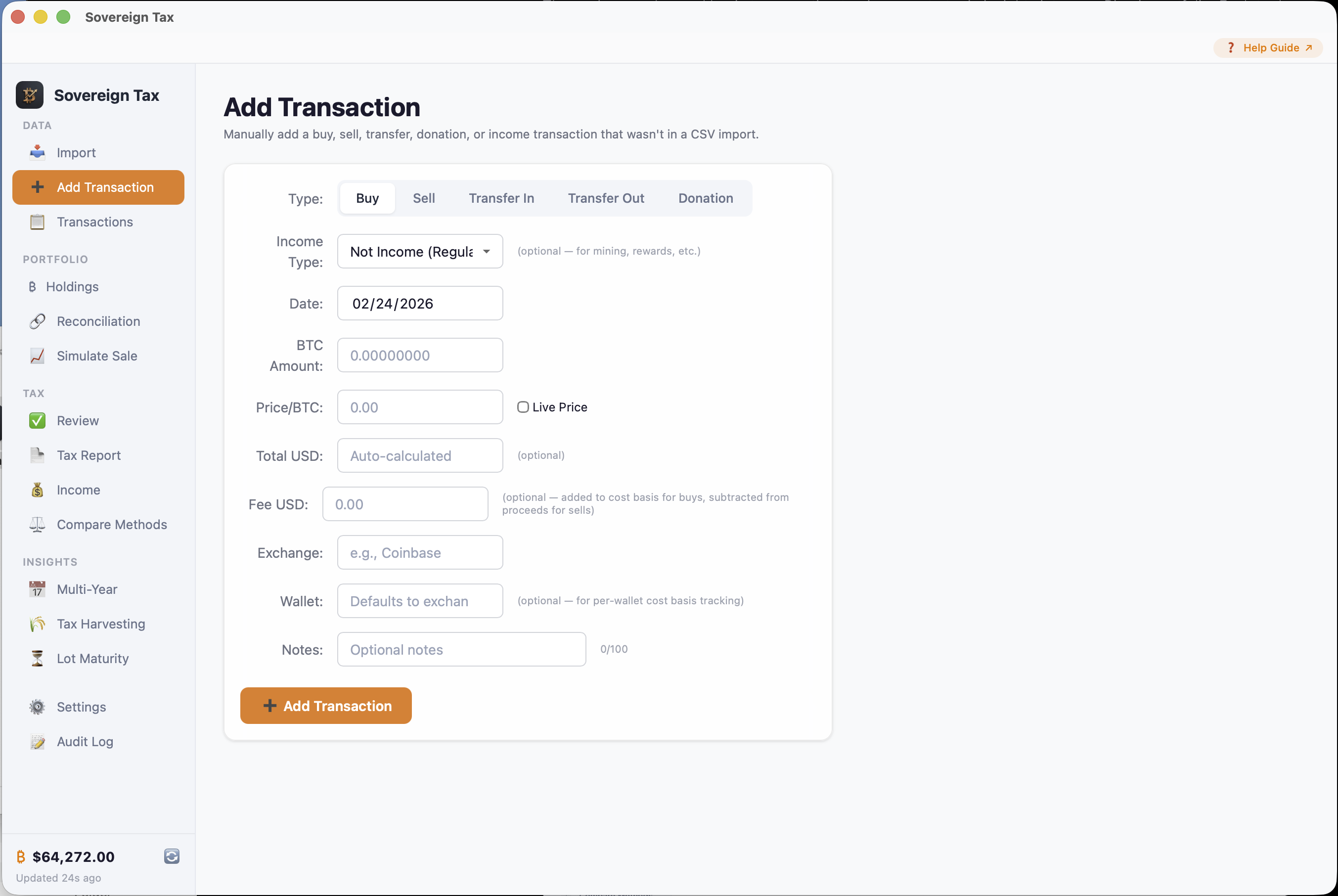
Add Transaction
The Add Transaction view lets you manually enter individual transactions. This is useful for recording trades from exchanges that don't offer CSV exports, correcting missing data, or adding one-off purchases. You can set the date, type, BTC amount, price, fee, exchange, wallet, and notes.
How it benefits you: Sometimes a CSV doesn't capture every transaction, or you need to add a purchase made in person or through a peer-to-peer trade. Manual entry ensures your records are complete without needing a CSV file for every single transaction.
Transaction Types
Every transaction in Sovereign Tax is one of five types:
Buy
Purchasing BTC with USD. Creates a tax lot — a record of how much BTC you acquired, when, and at what price. This becomes your cost basis.
Sell
Disposing of BTC for USD. Triggers a capital gain or loss calculated as: sale proceeds minus cost basis of the lots consumed.
Transfer In
Receiving BTC from another wallet or exchange you own. This is just a movement — it does not create a new lot or trigger any tax event.
Transfer Out
Sending BTC to another wallet or exchange you own. Also just a movement — no tax consequences. The cost basis travels with the BTC.
Donation
Donating BTC to a qualified charitable organization. Consumes lots but is not a taxable sale — no capital gain or loss is realized (IRC §170). Requires the Fair Market Value (FMV) at the time of donation for your charitable deduction records. Reported on Form 8283, not Form 8949.
Income Types
Buy transactions can optionally be tagged with an income type to classify them for Schedule 1 reporting:
- Mining — BTC received from mining operations
- Hard Fork — BTC received from blockchain forks
- Reward — Staking rewards, Coinbase Earn, learning rewards
- Interest — Interest payments from lending platforms
IRS: Income Tax Treatment
Crypto received as mining income, rewards, or interest is taxed as ordinary income at the fair market value (FMV) on the date received. The FMV also becomes the cost basis of those tokens. Report this income on Schedule 1 (Form 1040).
What is a Lot?
A lot is a discrete purchase of BTC at a specific date and price. When you buy 0.5 BTC on January 15th at $45,000, that creates one lot. Every lot tracks:
- Purchase date
- Amount of BTC (initial and remaining)
- Price per BTC (your cost basis)
- Total cost including fees
- Exchange and wallet
When you sell BTC, the app consumes lots based on your chosen accounting method (FIFO or Specific Identification). The difference between your sale price and the lot's cost basis determines your capital gain or loss.
Wallets vs. Exchanges
The exchange field records where a transaction happened (e.g., "Coinbase"). The wallet field records which specific wallet or sub-account holds the BTC. If no wallet is specified, the exchange name is used as the wallet.
Starting in 2025, the IRS requires per-wallet cost basis tracking. This means lots can only be sold from the same wallet they were purchased in. Sovereign Tax enforces this automatically.
Cost Basis & Accounting Methods
What This Section Covers
Understanding accounting methods is the most important concept to help reduce your tax bill. The method you choose determines which Bitcoin lots are sold first, which directly affects whether your gains are short-term (taxed at up to 37%) or long-term (taxed at 0–20%), and how much gain or loss is realized per sale. Sovereign Tax supports the two IRS-permitted methods — FIFO and Specific Identification — so you can find the optimal strategy for your situation.
What is Cost Basis?
Cost basis is the original value of an asset for tax purposes. For Bitcoin, it's the purchase price plus any fees paid. When you sell, your taxable gain or loss is calculated as:
Gain/Loss = Sale Proceeds − Cost Basis
The accounting method determines which lots are sold first when you have multiple purchases at different prices.
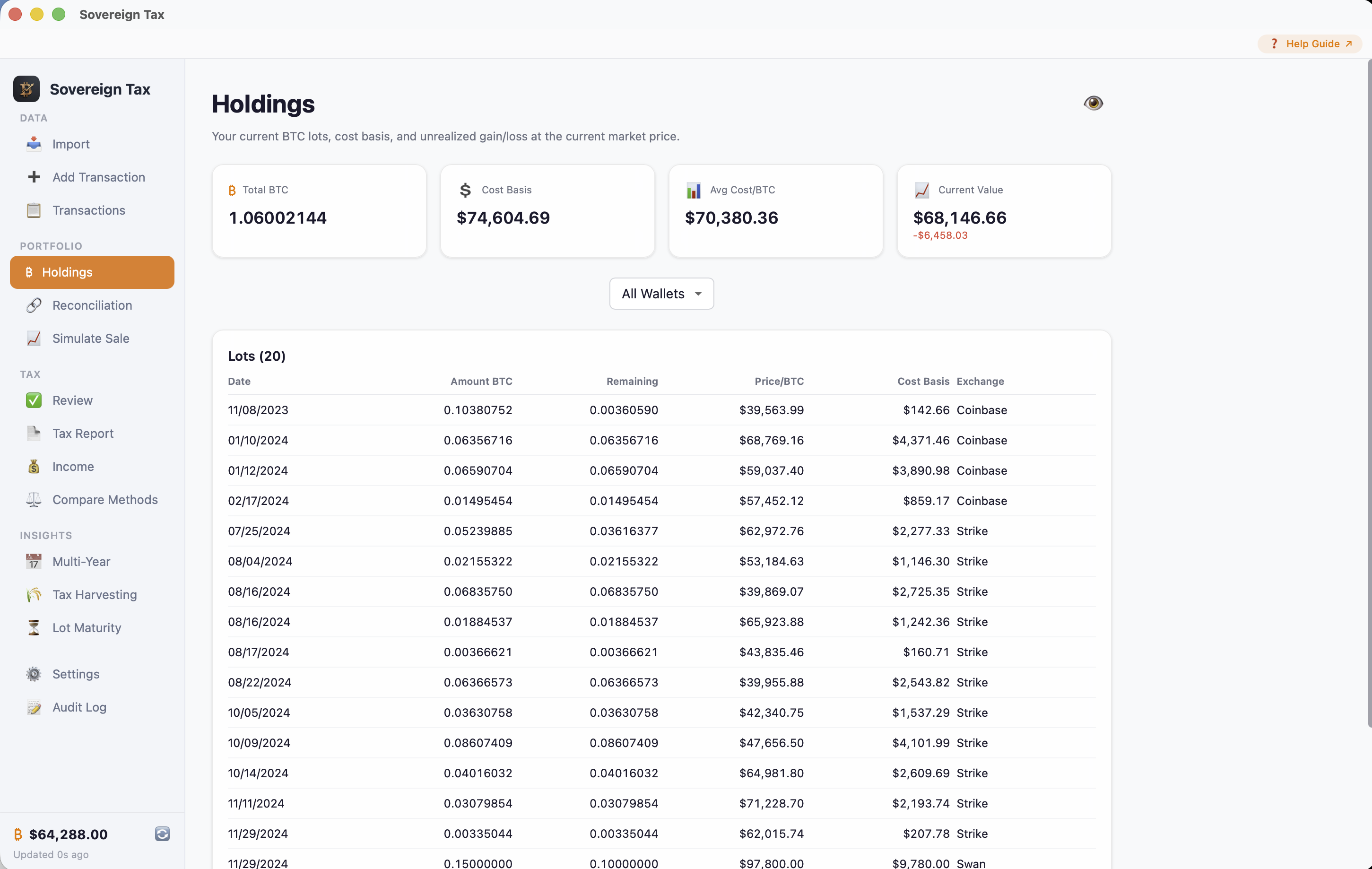
Holdings View
The Holdings view shows your current BTC inventory — every lot you own, its purchase date, cost basis, remaining amount, and which exchange/wallet it belongs to. Use the wallet filter to view lots from a specific wallet or exchange.
How it benefits you: This is your real-time portfolio dashboard. You can see exactly how much BTC you hold, what you paid for each lot, and your total unrealized gain or loss at the current market price. It's the fastest way to understand your tax position at a glance.
The Two IRS-Permitted Methods
FIFO — First In, First Out
Sells your oldest lots first. This is the IRS default method. In a rising market, this tends to produce larger gains (because your oldest BTC was cheapest) but they're more likely to be long-term gains, which are taxed at a lower rate.
Specific Identification
You manually choose which specific lots to sell or donate for each transaction using an interactive lot picker. Select individual lots, specify exact amounts from each, and see real-time cost basis and holding period details. Your lot elections are permanently recorded for IRS compliance. This method gives you full control to optimize for the lowest tax outcome.
IRS: Method Consistency
The IRS expects you to use the same accounting method consistently for all dispositions within a tax year. If you use FIFO for one sale, use it for all sales that year. You can switch methods between tax years. Specific Identification requires adequate identification of the lots being sold.
FIFO for Past Years — Don't Change History
If you used FIFO for previous tax years — either because you filed that way or because you never made Specific ID elections at the time of sale — those years should remain FIFO in the app. Do not retroactively assign Specific ID lots to past-year sells. The IRS default is FIFO, and retroactive changes to prior-year lot selections are generally not permitted (Treas. Reg. §1.1012-1(c)(1)).
What to do: Use the year selector to switch to each prior year and make sure no Specific ID elections have been applied. If any prior-year sells show as "Specific ID" when they should be FIFO, click "Revert to FIFO" in the Transactions view. Only use Specific ID for current and future year sells where you make the election at or before the time of sale. For 2025 transactions, IRS Notice 2025-07 provides temporary relief for record-keeping.
Comparing Methods
Use the Compare Methods view to see a side-by-side comparison of FIFO vs. Optimal Specific ID. The app runs both methods on your data and shows you the difference — a bar chart with total gain/loss for each, a detailed table with short-term and long-term breakdowns, and a green savings callout showing how much you could save by using Specific ID.
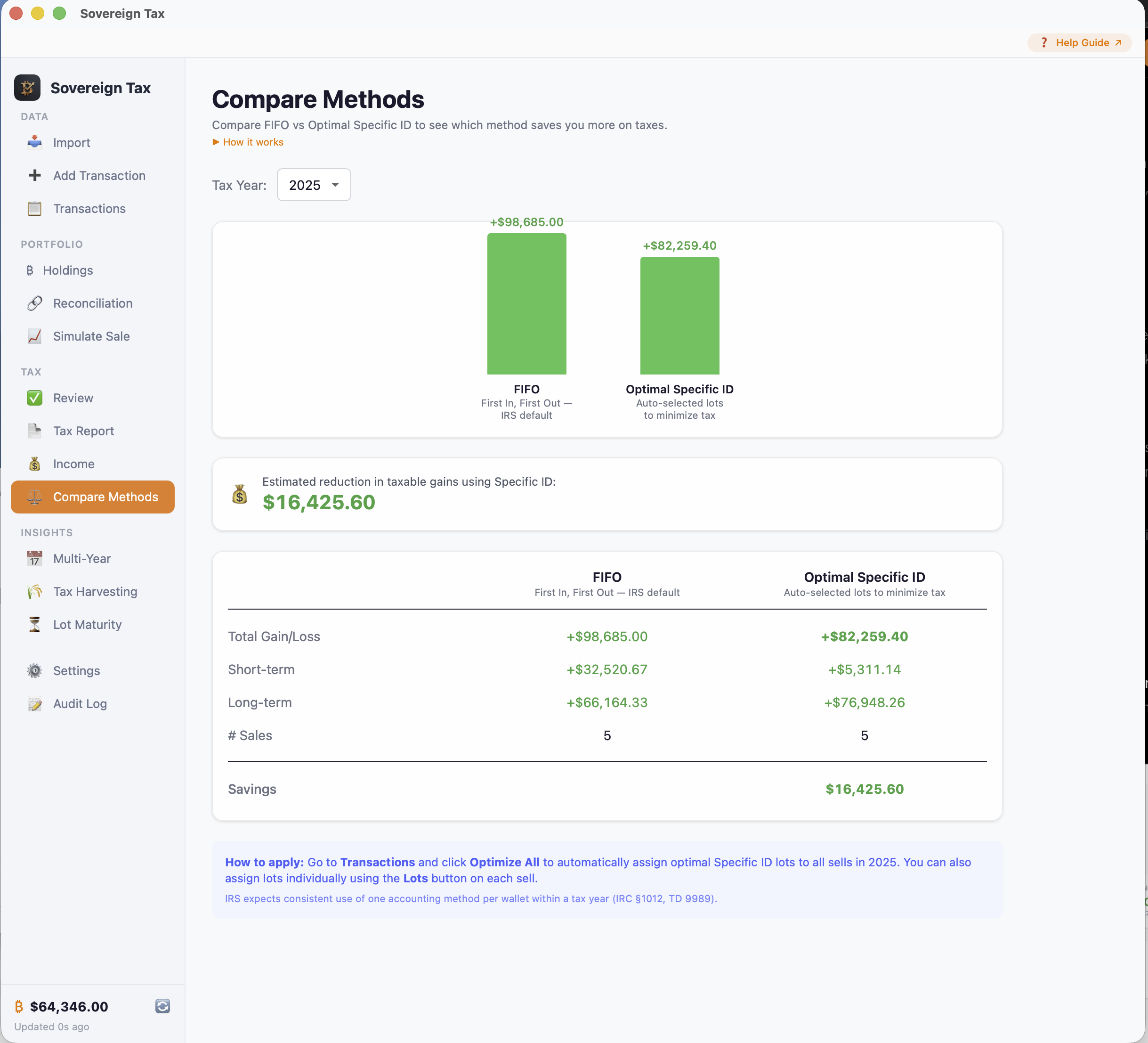
Tip: Apply the optimization
If Compare Methods shows savings, go to Transactions and click Optimize All to automatically assign Specific ID lots to all your sells for the year. You can also assign lots individually using the Lots button on each sell.
Specific ID: Complete Guide
Read the standalone Specific ID guide → — includes IRS rules, tax savings examples, and FIFO comparison.
What Is Specific Identification?
Specific Identification (Specific ID) is an IRS-permitted accounting method that lets you choose exactly which Bitcoin lots to sell or donate, instead of following a fixed order like FIFO. This gives you direct control over your tax outcome for every disposition.
Why it matters: Different lots have different cost bases and holding periods. By picking the right lots, you can realize losses instead of gains, convert short-term gains into long-term gains (taxed at 15–20% instead of up to 37%), or pick high-basis lots to minimize your taxable gain. On a single sale, this can save hundreds or thousands of dollars.
IRS: Legal Basis
Specific Identification is authorized under IRC §1012 and requires "adequate identification" of the lots at the time of sale. Per IRS TD 9989 (effective January 2025), you must track lots on a per-wallet basis — you cannot mix lots across wallets in a single sale. Sovereign Tax enforces both requirements automatically.
IRS: Pre-Disposition Timing Requirement
Under Treas. Reg. §1.1012-1(c)(1) and IRS FAQ 82, Specific ID elections must be made "no later than the date and time of the sale." This means you must identify which lots you are selling before or at the time of the disposition — not after the fact.
What this means for imported transactions: If you import historical sells from an exchange CSV and then use Optimize All or Edit Lots to retroactively assign Specific ID lots, those elections may not satisfy the IRS timing requirement if you did not actually identify the specific lots at the time of each original sale. In that case, the IRS default method (FIFO) would apply.
2025 relief: IRS Notice 2025-07 provides temporary relief for 2025 transactions, allowing more flexible documentation of Specific ID elections in the taxpayer's own records. This relief does not extend to prior tax years.
Going forward: The compliant workflow is to use Sovereign Tax's Simulate → Record workflow or Manual Lot Picking to make your Specific ID election at or before the time of each sale. Standing orders (predetermined lot selection criteria like "always use highest basis") are also permitted if documented before the sale (IRS FAQ 88).
5 Ways to Use Specific ID
Sovereign Tax gives you multiple ways to use Specific ID depending on your situation. Here's a quick overview — choose the approach that fits your workflow.
| Method | When to Use | Where in the App |
|---|---|---|
| 1. Optimize All | You have imported sells and want to batch-assign the best lots to all of them at once | Transactions → Optimize All button (top bar) |
| 2. Edit Lots | You want to assign or change lot selections on a specific sell or donation after the fact | Transactions → click Lots button on any sell/donation row |
| 3. Simulate → Record | You're planning a sale and want to pick lots in advance, then record the actual sale later | Simulate Sale → save selections → Add Transaction → Sell |
| 4. Manual Lot Picking | You're recording a sale or donation and want to pick lots on the spot | Add Transaction → Sell or Donation → select Specific ID |
| 5. Compare Methods | You want to see how much you'd save with Specific ID vs. FIFO before committing | Compare Methods view (Tax section in sidebar) |
1. Optimize All (Batch Assignment)
The fastest way to switch from FIFO to Specific ID. In the Transactions view, click Optimize All in the top toolbar. The app analyzes every sell transaction for the selected year and automatically assigns the tax-optimal lots to each one.
The algorithm scores each available lot by its estimated tax impact: (sale price − cost basis) × tax rate, using 37% for short-term and 15% for long-term. Lots with losses are picked first (they generate tax savings), followed by lots with the smallest gains. Sales are processed chronologically so lot availability is accurate.
After optimization, each sell shows a blue "Lots ✓" indicator. You can review individual assignments by clicking the Lots button, and revert any or all of them.
Tip: Check Compare Methods first
Before running Optimize All, open Compare Methods to see the estimated savings. If FIFO and Optimal Specific ID produce similar results, there may be no benefit to switching. If there's a meaningful difference, Optimize All applies it in one click.
2. Edit Lots (Per-Transaction)
Every sell and donation row in the Transactions view has a Lots button. Click it to open the Edit Lots modal, where you can assign or change Specific ID lot selections for that individual transaction.
The modal reconstructs the lot pool as it existed on the date of that transaction — accounting for all prior purchases and sales — so you see exactly which lots were available. It includes the full lot picker with sortable columns, color-coded rows (green for long-term, orange for short-term), the Optimize button, and a preview of the tax impact before you save.
This is especially useful for CSV imports. When you import sell transactions from an exchange, they default to FIFO. You can go through each sell and assign Specific ID lots to optimize your tax outcome. See the Sales section for full details.
Important: IRS timing requirement
If you are assigning Specific ID lots to a sell that already happened (e.g., imported from a CSV), be aware that Treas. Reg. §1.1012-1(c) requires Specific ID elections to be made at or before the time of sale. Retroactive lot assignment may not satisfy IRS requirements unless you documented your lot identification before the original transaction. For 2025 transactions, Notice 2025-07 provides temporary relief. See the IRS timing note above for details.
3. Simulate → Record Workflow
This is the recommended workflow when you're planning a sale that hasn't happened yet:
- Simulate: Go to Simulate Sale, enter the amount, select Specific ID, and pick your lots (or click Optimize). Review the tax breakdown. Your selections are saved to your session.
- Execute: Sell on your exchange. Note the final price and exact BTC amount.
- Record: Go to Add Transaction → Sell. A blue banner appears: "You have saved lot selections from Simulation." Click Use Saved Selections to pre-fill your lot picks, enter the actual sale price, and record.
Saved selections persist for your current session and are cleared when you lock the app, close it, or record a sale. See the Sales section for step-by-step details with screenshots.
4. Manual Lot Picking
When recording a sale or donation in Add Transaction, select Specific ID as the accounting method. A Select Lots button appears. Click it to open the lot picker and manually choose which lots to use for this disposition. You can pick lots individually, enter custom amounts for partial lot sales, or click Optimize to auto-select the best ones.
5. Compare Methods
The Compare Methods view runs both FIFO and Optimal Specific ID on your data for the selected tax year and shows them side-by-side. You'll see a bar chart comparing total gain/loss, a breakdown table with short-term and long-term amounts, and a green savings callout showing the difference. If Specific ID produces a better outcome, you can apply it using Optimize All.
The Lot Picker
All Specific ID workflows use the same interactive lot picker. It shows your available lots with:
- Color-coded rows: Green background for long-term lots, orange for short-term — so you can visually prioritize at a glance
- Sortable columns: Click any header (Date, Wallet, Available, Cost/BTC, Days Held, Term) to sort ascending/descending
- Optimize button: Auto-selects the lots that minimize your tax bill using per-lot tax scoring
- Per-wallet filtering: Only lots from the selected wallet are shown (IRS TD 9989)
- Real-time tracking: Target amount vs. selected amount updates as you check lots
- Custom amounts: Enter exact BTC amounts per lot for partial dispositions
Tip: Which method should I use?
Start with Compare Methods to see if Specific ID saves you money. If it does, use Optimize All for the fastest path. Use Edit Lots if you want fine-grained control over individual sales. Use the Simulate → Record workflow for future sales you're still planning.
IRS: Consistency Requirement
The IRS expects you to use the same accounting method consistently within a tax year. If you use Specific ID for one sale, use it for all sales that year. You can switch between FIFO and Specific ID across different tax years. Your lot elections are permanently recorded and used in all future calculations.
IRS: Wallet Mismatch & Global Lot Pool Fallback
When you sell Bitcoin from a wallet that has no lots (because you transferred BTC there but haven't assigned the source wallet yet), Sovereign Tax falls back to using lots from all wallets and flags the sale with a yellow warning. This fallback produces a tax calculation, but it uses a global lot pool, which is the "universal method" that Treasury Reg. §1.1012-1(j) explicitly prohibits for tax years beginning after December 31, 2024.
Do not file a return based on fallback calculations. Instead, assign source wallets on your Transfer In transactions (Transactions → Assign button) so lots are re-tagged to the correct wallet. Once all transfers are assigned, the wallet mismatch warnings will resolve and your exports will be compliant.
All exported documents (Form 8949 CSV, PDF, TurboTax formats) include a prominent disclaimer when wallet mismatches are present.
IRS References
The rules implemented in Sovereign Tax are based on the following IRS guidance:
- Treasury Reg. §1.1012-1(j) (TD 10000) — Per-wallet cost basis tracking required (effective Jan 1, 2025)
- Treas. Reg. §1.1012-1(c) — Specific Identification timing and adequate identification requirements
- IRS FAQ 81 — Self-transfers are non-taxable; cost basis and holding period carry over
- IRS FAQ 82 — Two-part requirement for Specific ID (pre-disposition identification + adequate records)
- IRS FAQ 86 — FIFO is the default method when Specific ID is not elected
- IRS FAQ 88 — Standing orders (predetermined lot selection criteria) are permitted
- Rev. Proc. 2024-28 — One-time safe harbor for transitioning to per-wallet basis as of Jan 1, 2025
- Notice 2025-07 — Temporary relief for 2025 specific identification record-keeping
- IRC §1012 — Basis of property; Specific Identification authorized
- IRC §1222 — Short-term vs. long-term capital gains (1-year holding period)
- IRC §170 — Charitable contributions; noncash donations at FMV
Review View
What It Is
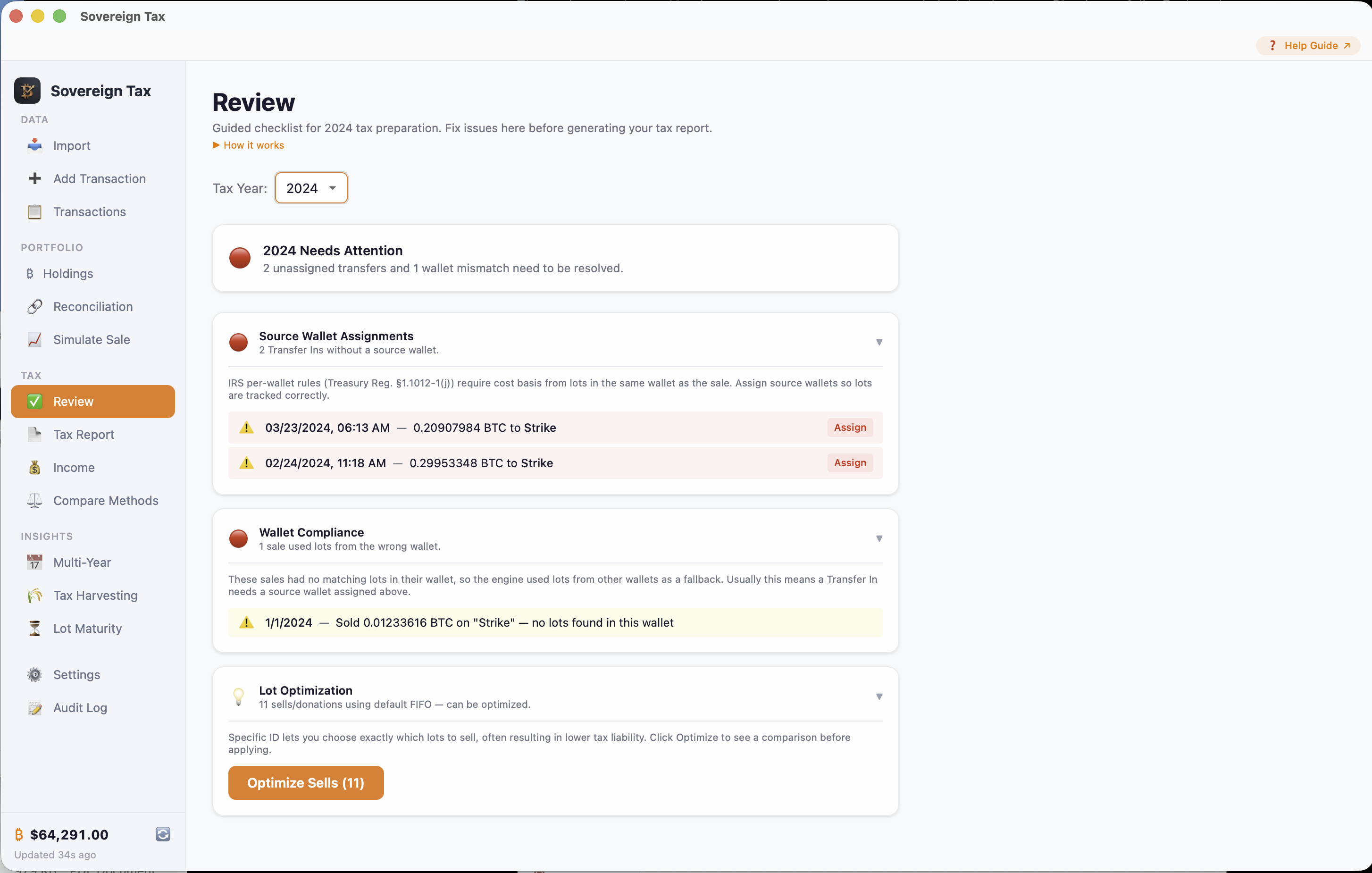
The Review view is a guided tax preparation checklist that sits between your data import and your final tax report. It scans your transactions for the selected tax year and flags everything that needs attention — unassigned transfers, wallet mismatches, lot optimization opportunities — and tells you when you're ready to file.
How it benefits you: Instead of checking Transactions, Holdings, and Tax Report separately for issues, the Review view puts everything in one place. Work through the sections top to bottom and you'll know your tax report is clean and IRS-compliant before you export.
The Four Sections
1. Unassigned Transfers
Shows Transfer In transactions for the selected year that have not been assigned a source wallet. Each row has an "Assign" button to open the Source Wallet Modal. The section count tells you how many transfers need attention. When all transfers are assigned, the section shows a green checkmark.
2. Wallet Mismatches
Shows sales and donations where the cost basis engine had to fall back to the global lot pool because no lots were found in the sale's wallet. This typically means a Transfer In hasn't been assigned its source wallet. The fix instructions point you to the specific Transfer In that needs attention. When all mismatches are resolved, the section shows a green checkmark.
3. Lot Optimization
Shows how many sells for the selected year are using FIFO vs. Specific ID, and estimates the potential tax savings from switching to Specific ID. If savings are available, you can click through to Transactions to run Optimize All. If all sells already have optimal lot selections (or no savings are possible), the section shows a green checkmark.
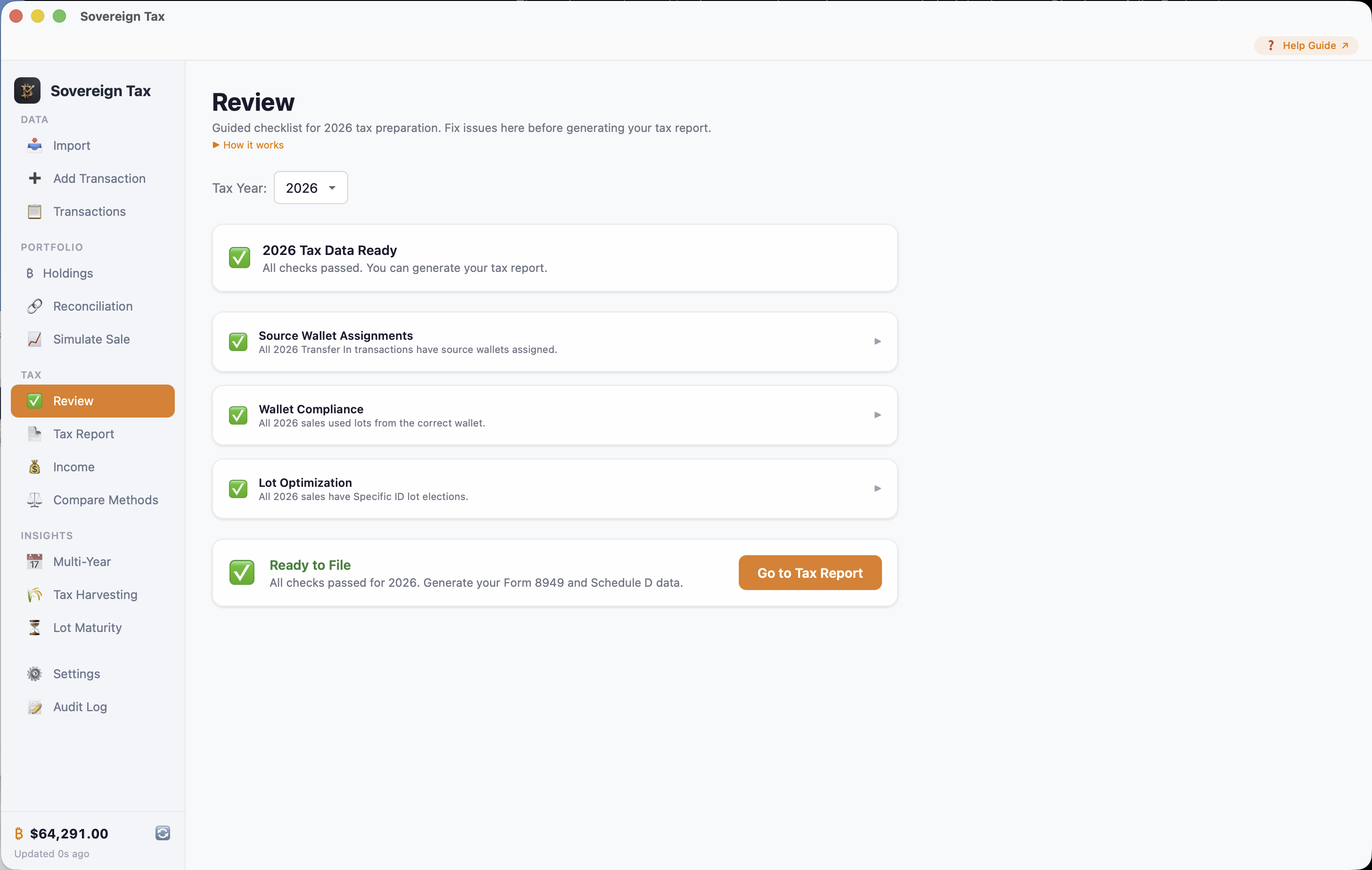
4. Ready to File
A summary section that checks whether all previous sections are resolved. When everything is green, it confirms you're ready to export your tax report. It provides a direct link to the Tax Report view.
Tip: Year selector matters
The Review view is scoped to the selected tax year (same year selector as Transactions and Tax Report). Make sure you have the correct year selected when working through the checklist.
Tip: Use Review as your pre-filing checklist
Before exporting any tax report, open Review and make sure all four sections show green checkmarks. This ensures your data is clean, your wallet assignments are complete, and your lot selections are optimal.
Tax Reports & Filing
What It Is
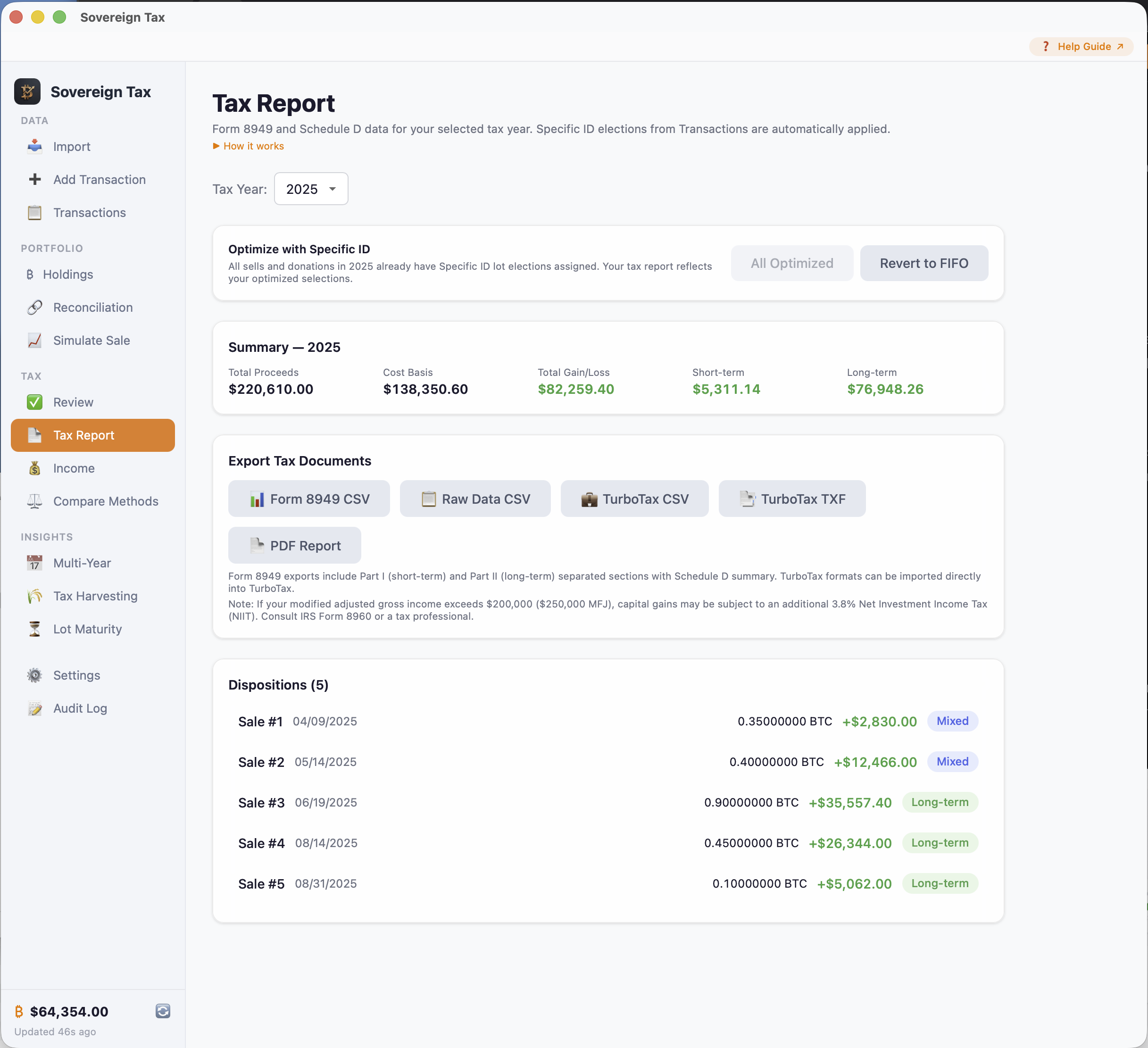
The Tax Report view is where everything comes together. It takes your imported transactions, applies your chosen accounting method, and generates a complete summary of your capital gains and losses for any tax year. You'll see total proceeds, total cost basis, net gain or loss, and a breakdown by short-term and long-term. From here, you export in the format you need for filing.
How it benefits you: Instead of hiring a specialist or manually computing gains from dozens of trades, the Tax Report does it all automatically. You get an IRS-ready Form 8949 in seconds — as a PDF you can print, a CSV for spreadsheets, or a TXF file that imports directly into TurboTax. Hand it to your accountant or file it yourself.
Form 8949
IRS Form 8949 is used to report capital gains and losses from the sale of capital assets, including cryptocurrency. It has two parts:
- Part I: Short-term capital gains and losses (assets held one year or less)
- Part II: Long-term capital gains and losses (assets held more than one year)
Sovereign Tax generates Form 8949 data automatically from your transaction history and accounting method. Select a tax year and export in your preferred format. The report automatically detects whether your sales use FIFO or Specific ID (or a mix) and labels the exports accordingly.
The Tax Report also includes an Optimize All button that batch-assigns tax-optimal Specific ID lots to all unassigned sells for the selected year — the same functionality available in the Transactions view. See the Specific ID Guide for details.
Short-Term vs. Long-Term
The holding period determines how your gain or loss is classified:
- Short-term: Held for one year or less. Taxed at your ordinary income rate (up to 37%).
- Long-term: Held for more than one year. Taxed at the lower capital gains rate (0%, 15%, or 20% depending on income).
The app calculates this per IRC §1222, including proper handling of leap years and boundary dates.
Mixed-Term Sales
Sometimes a single sale uses lots from both short-term and long-term holding periods. Sovereign Tax automatically splits mixed-term sales into separate line items on Form 8949 — the short-term portion goes to Part I and the long-term portion goes to Part II.
Export Formats
The Tax Report view offers six export options:
| Format | Best For |
|---|---|
| Form 8949 CSV | Standard format with Part I / Part II separation. For manual filing or accountants. |
| Raw Data CSV | All sale data in a flat format with lot-level details. For record keeping. |
| TurboTax CSV | Formatted for direct import into TurboTax. |
| TurboTax TXF | TXF format for direct import into TurboTax (alternative method). |
| PDF Report | Formatted Form 8949 PDF. Ready to print or attach to your tax return. |
| Form 8283 CSV | Charitable donation reference data with per-lot details, FMV, and IRC deduction rules. For Schedule A filing. Only appears when you have donations. |
Tip: Donations are separate
Charitable donations are excluded from Form 8949 exports since they are not taxable dispositions. They appear in their own section on the Tax Report with a dedicated Form 8283 CSV export button.
Capital Loss Carryforward
If your net capital losses exceed $3,000 ($1,500 if married filing separately), only $3,000 can be deducted against ordinary income in the current year. The excess is carried forward to future tax years. The app calculates this automatically and shows the carryforward amount.
IRS: Net Investment Income Tax (NIIT)
If your modified adjusted gross income (MAGI) exceeds $200,000 ($250,000 for married filing jointly), you may owe an additional 3.8% Net Investment Income Tax on your capital gains. The app shows a warning when gains are large enough to potentially trigger NIIT.
Tip: Consult a tax professional
Sovereign Tax provides detailed calculations, but every tax situation is unique. Consider consulting a CPA or tax attorney for complex situations, especially if you have significant gains, losses across multiple years, or income from multiple sources.
Recording & Simulating Sales
These two views are your action center for Bitcoin dispositions. Whether you're planning a future sale or recording one that already happened, Sovereign Tax shows you exactly how it affects your taxes before you commit.
Simulate a Sale
What It Is
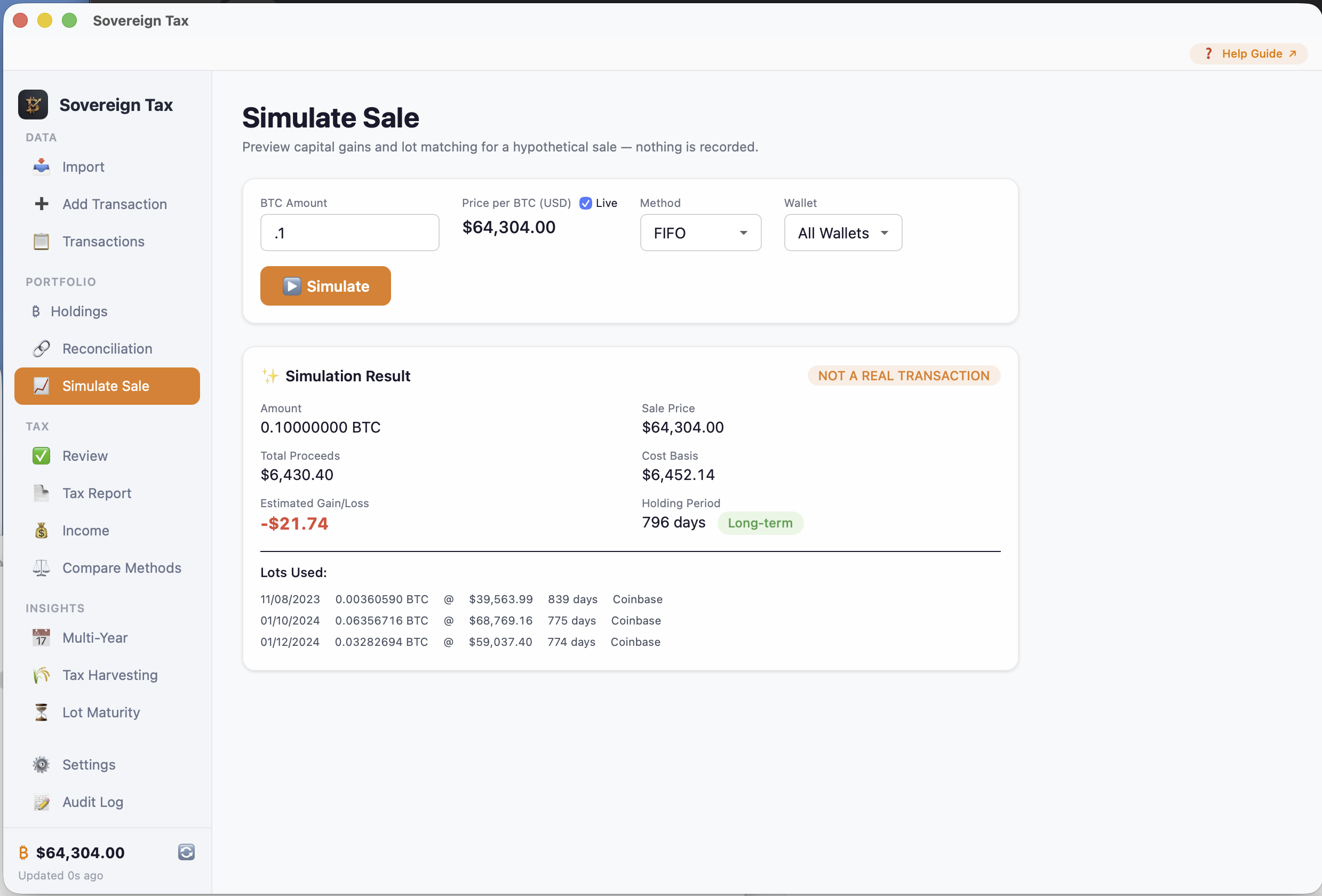
The Simulate Sale view is a tax calculator that lets you preview the exact consequences of a potential sale without recording anything. Think of it as a "what-if" sandbox for your Bitcoin taxes.
How to Use It
Enter the BTC amount and price (or use live price from CoinGecko), select an accounting method, and see:
- Total proceeds
- Cost basis
- Estimated gain or loss
- Whether it's short-term or long-term
- Which lots would be consumed
Simulations are clearly marked as "NOT A REAL TRANSACTION" and nothing is saved.
How it benefits you: Before you sell any Bitcoin, you can see the exact tax impact — down to which lots will be consumed, the holding period of each, and whether your gain will be taxed at the short-term or long-term rate. This lets you time your sales strategically, potentially saving thousands in taxes by waiting for lots to mature to long-term status.
Record a Sale
To record a sale, go to Add Transaction in the sidebar and select the Sell type. Enter the sale date, BTC amount, price per BTC (or use the live price toggle), wallet, and accounting method (FIFO or Specific ID). Click "Preview" to see the full tax breakdown before committing, then "Record Sale" to save. This:
- Creates a Sell transaction in your transaction history
- Creates a sale record with lot-level details
- Consumes the appropriate lots (reducing their remaining BTC)
- Appears in your Tax Report and Form 8949 exports
If you used the Simulate → Record workflow, a blue banner will appear offering to pre-fill your lot selections.
Tip: Always preview first
Click "Preview" before "Record Sale" to verify the gain/loss calculation. Once recorded, you would need to delete the transaction and re-record to make changes.
Undoing a recorded sale
If you recorded a sale by mistake, go to Transactions, find the sell transaction, and click Del > Delete. The lots consumed by that sale are automatically restored — the cost basis engine recalculates from scratch, so it's as if the sale never happened. The deletion is logged in the Audit Log.
Specific ID Lot Picking
When you select Specific ID as the accounting method for a sale or donation, you get an interactive lot picker where you choose exactly which lots to use. The picker shows color-coded rows (green for long-term, orange for short-term), sortable columns, an Optimize button that auto-selects the tax-optimal lots, and real-time amount tracking.
For the complete guide on Specific ID — including all 5 ways to use it, the lot picker, the Simulate → Record workflow, batch optimization, and retroactive lot editing — see the Specific ID Guide.
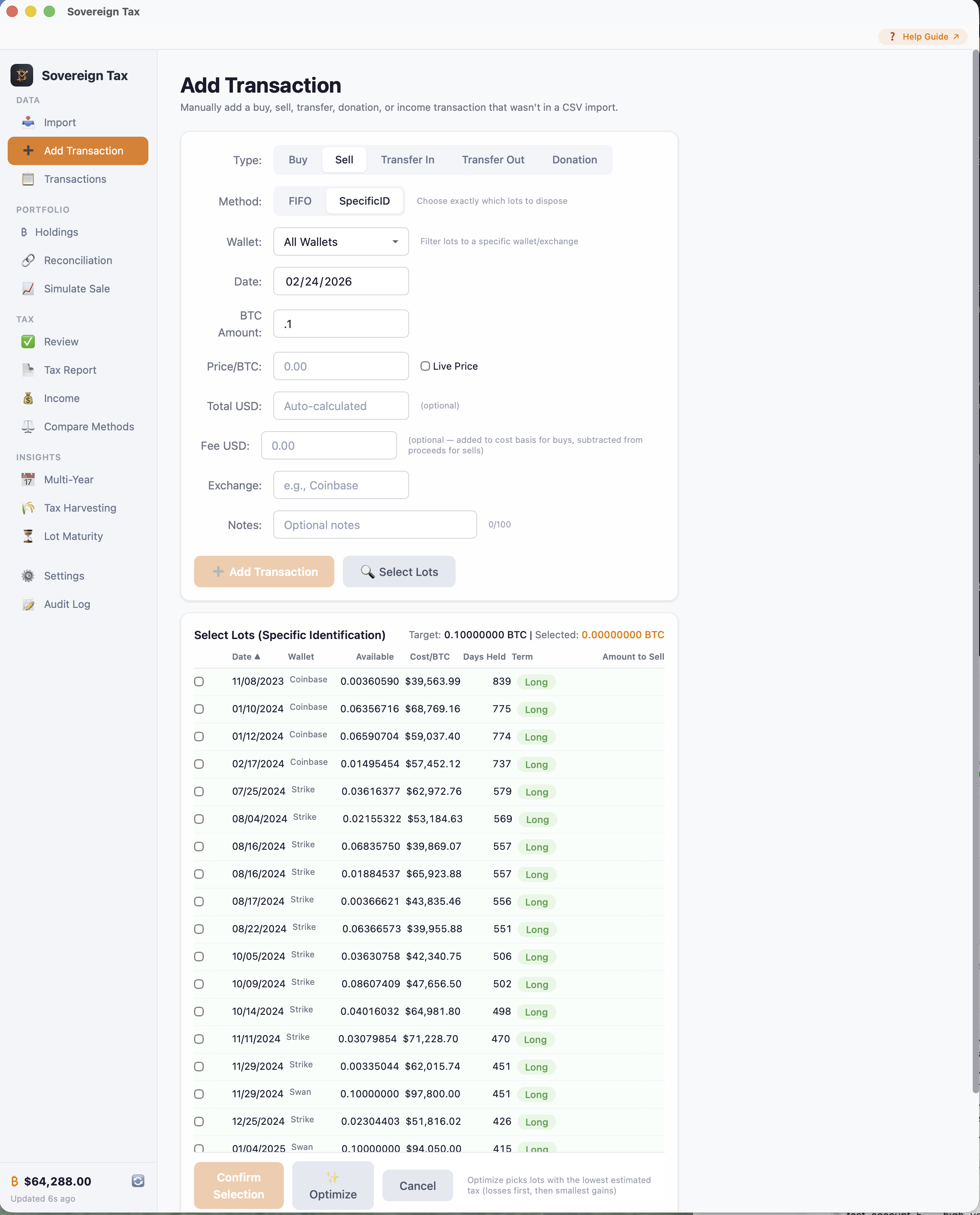
Live Price
Check the "Use live price" box to automatically fetch the current BTC price from CoinGecko. This requires an internet connection. The price is used for the simulation or sale — no personal data is sent.
Duplicate Sale Detection
If you try to record a sale that matches an existing sell transaction on the same day for a similar amount, the app warns you to prevent accidental duplicates. You can still proceed if the sale is intentional.
Charitable Donations
What It Is
Sovereign Tax supports charitable Bitcoin donations as a first-class transaction type. When you donate BTC to a qualified charity, it is not a taxable sale — no capital gain or loss is realized. Instead, you may be eligible for a charitable deduction on your tax return based on the Fair Market Value (FMV) of the donated Bitcoin.
How it benefits you: Donating appreciated Bitcoin directly to a charity can be more tax-efficient than selling first and donating cash. You avoid triggering capital gains tax on the appreciation, and you may deduct the full FMV if you held the Bitcoin for more than one year. Sovereign Tax tracks all the details you need for Form 8283 reporting.
How Donations Work
A donation consumes lots just like a sale, but with zero proceeds and zero gain/loss. The cost basis is still tracked because it affects your deduction:
- Long-term donations (held > 1 year) — deductible at FMV, limited to 30% of AGI (IRC §170(b)(1)(C))
- Short-term donations (held ≤ 1 year) — deductible at cost basis only (IRC §170(e)(1)(A))
- Mixed-term donations — the long-term portion is deductible at FMV, the short-term portion at cost basis
IRS: Form 8283 Requirements
Noncash charitable contributions over $500 must be reported on Form 8283 (Section A). Donations over $5,000 require a qualified appraisal (Section B). Sovereign Tax exports a Form 8283 reference CSV with all the per-lot details you need for filing.
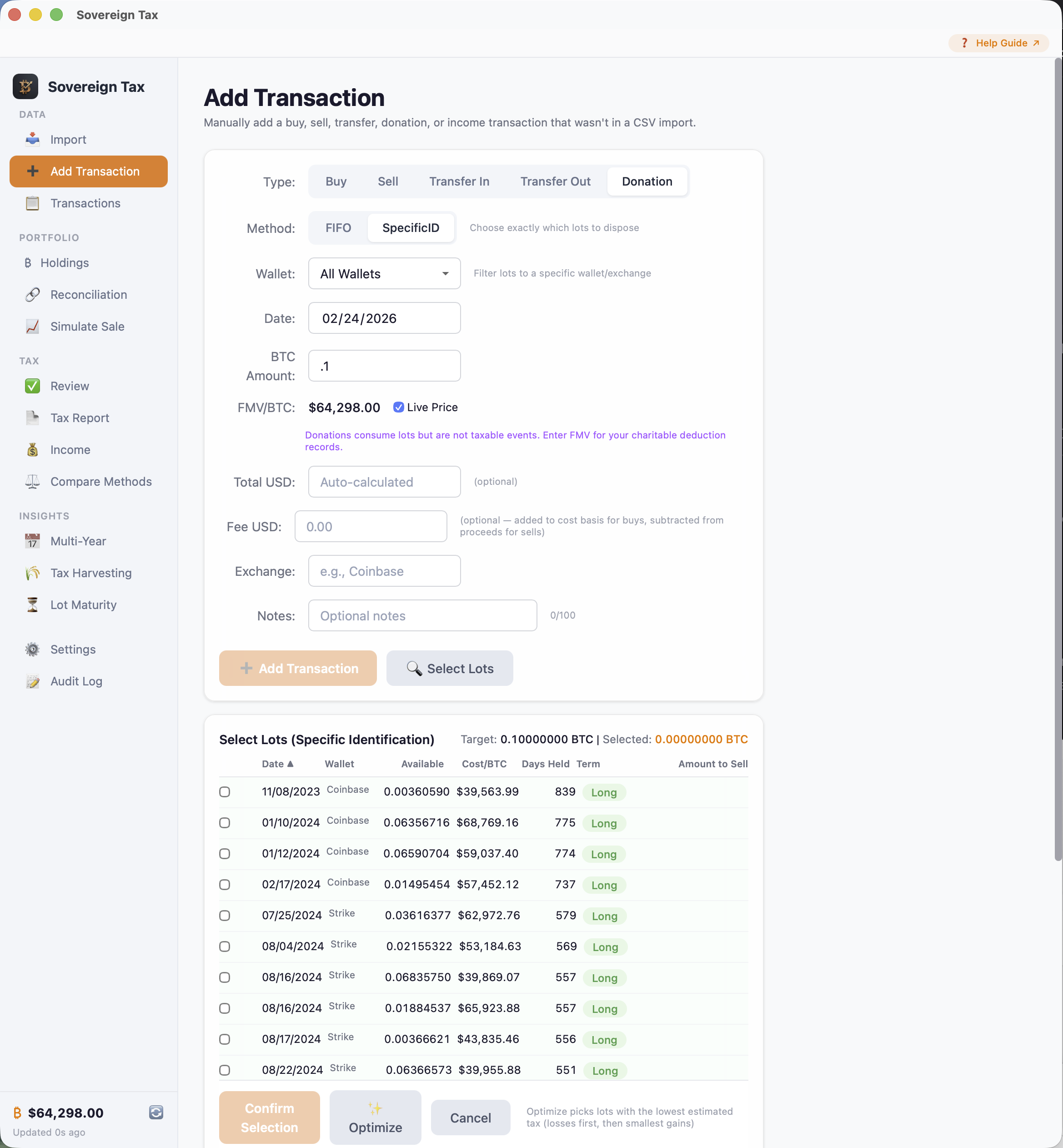
Adding a Donation
Go to Add Transaction
Click Add Transaction in the sidebar and select the Donation type button.
Enter donation details
Fill in the date, BTC amount, and FMV per BTC on the date of donation. FMV is required — it determines your charitable deduction amount. You can fetch the historical price from CoinGecko if live pricing is enabled.
Choose an accounting method
Select which lot consumption method to use: FIFO or Specific ID. For Specific ID, you'll manually select which lots to donate from using the lot picker.
Preview and save
Click Preview Lot Consumption (or Select Lots for Specific ID) to see which lots will be consumed, including the holding period and cost basis for each. Then click Save Transaction.
Importing Donations from CSV
If your CSV file includes donation transactions, Sovereign Tax auto-detects them. The import engine recognizes keywords like "donation", "gift", "charitable", and "charity" in the type column and automatically classifies those rows as donations.
Donations in the Tax Report
Donations appear in a dedicated Charitable Donations section on the Tax Report, separate from taxable sales. This section shows:
- Total BTC donated
- Total Fair Market Value
- Total cost basis
- Per-donation details with holding period, lot breakdown, and applicable IRC deduction rules
Donations are excluded from Form 8949 since they are not taxable dispositions. Instead, use the Form 8283 CSV export button to generate a reference file for your charitable contribution reporting.
Tip: Hold for more than one year before donating
If you donate Bitcoin you've held for more than one year, you can deduct the full Fair Market Value. If you've held it for one year or less, the deduction is limited to your cost basis. Timing your donations around the long-term threshold can significantly increase your charitable deduction.
Purple UI Treatment
Donations are visually distinct throughout the app with a purple theme. You'll see a purple heart indicator in the Transactions view, purple badges on donation dispositions in the Tax Report, and a purple-bordered card for the Form 8283 section. This makes it easy to distinguish charitable donations from taxable sales at a glance.
Advanced Tools
These views go beyond basic tax reporting to give you strategic insights into your Bitcoin portfolio. Each tool is designed to help you make smarter decisions about when to sell, which method to use, and how to minimize your tax burden legally.
Method Comparison
What It Is
The Compare Methods view runs both FIFO and Optimal Specific ID on your data for the selected tax year and shows them side-by-side. A bar chart compares total gain/loss, a detailed table breaks down short-term vs. long-term, and a green savings callout highlights the difference.
How to Use It
Select a tax year and the view automatically computes both methods. If Specific ID shows savings, click Optimize All in the Transactions view to apply it. See the Specific ID Guide for the full workflow.
How It Benefits You
Choosing the right accounting method can save you significant money. This view quantifies exactly how much you'd save by switching from FIFO to Specific ID — no guesswork required.
Tax-Loss Harvesting
What It Is
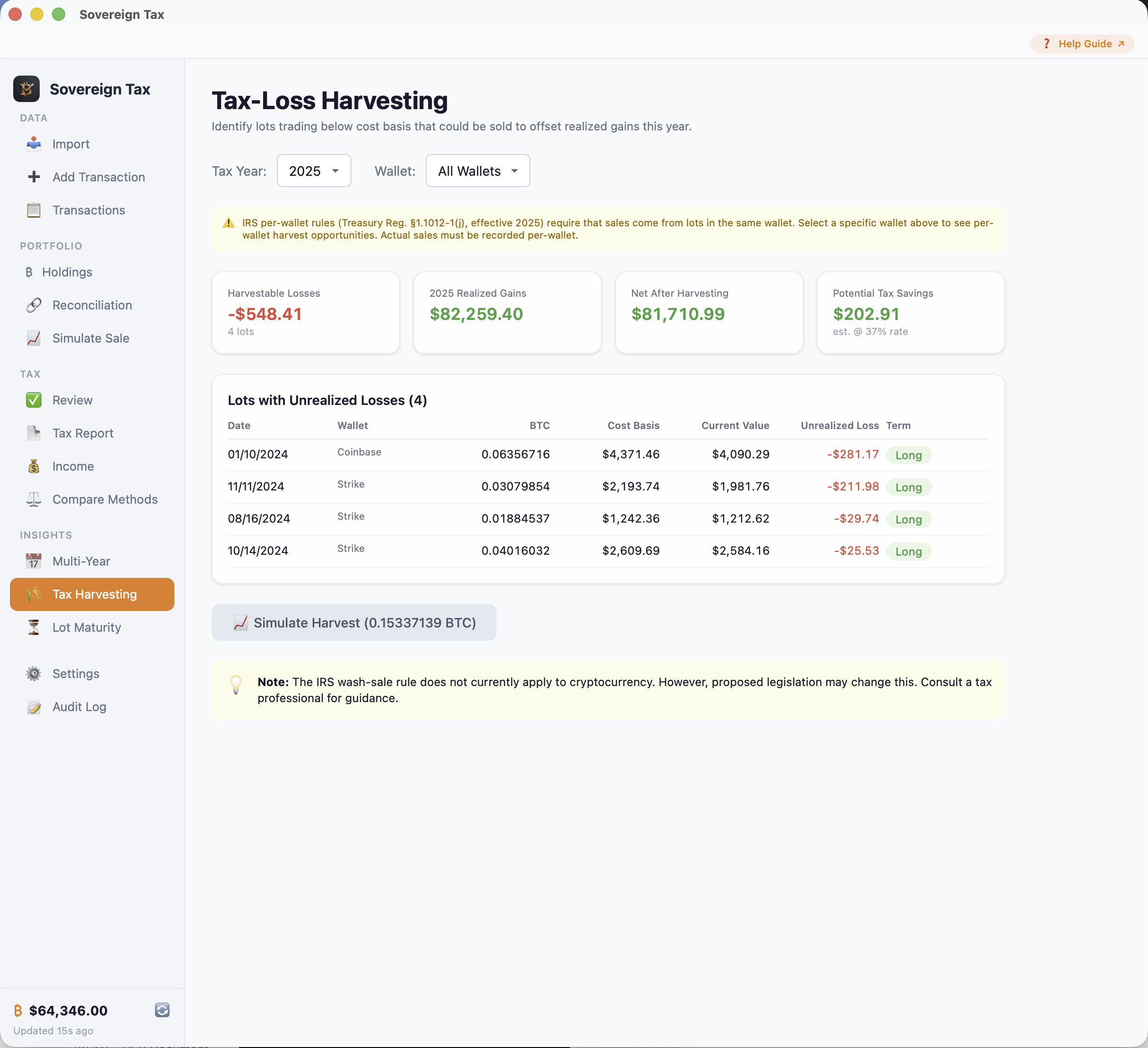
The Tax-Loss Harvesting dashboard scans your portfolio for BTC lots that are currently trading below their cost basis. These represent unrealized losses that you could "harvest" by selling and immediately rebuying, locking in the loss for tax purposes to offset capital gains.
How to Use It
The view requires a live BTC price (fetched from CoinGecko) to calculate which lots are currently at a loss. Select a tax year and optionally a specific wallet to filter by. It shows:
- Total harvestable losses
- Your current year realized gains
- Net position after harvesting
- Estimated tax savings (an upper-bound federal estimate — up to 37% for short-term losses, up to 23.8% for long-term losses)
You can simulate harvesting all losing lots at the current price to see the full impact. The simulation respects your wallet selection — only lots from the selected wallet are included.
How it benefits you: Tax-loss harvesting is one of the most powerful legal tools for reducing your tax bill. By strategically selling lots at a loss, you can offset gains from other sales — potentially saving thousands of dollars. The wash sale rule does not currently apply to cryptocurrency under most interpretations, you can sell and immediately repurchase without the 30-day waiting period that applies to stocks.
Tip: Select a specific wallet
Under the 2025 IRS per-wallet rules, sales must come from lots in the same wallet. When using Tax-Loss Harvesting, select the specific wallet you plan to sell from to see accurate per-wallet harvest opportunities. The "All Wallets" view is useful for an overview but does not reflect IRS per-wallet requirements.
IRS: Wash Sale Rule & Crypto
The IRS wash sale rule (which disallows losses if you repurchase a substantially identical asset within 30 days) does not currently apply to cryptocurrency under IRC §1091. However, proposed legislation may change this. Consult your tax advisor for the latest guidance.
Multi-Year Dashboard
What It Is
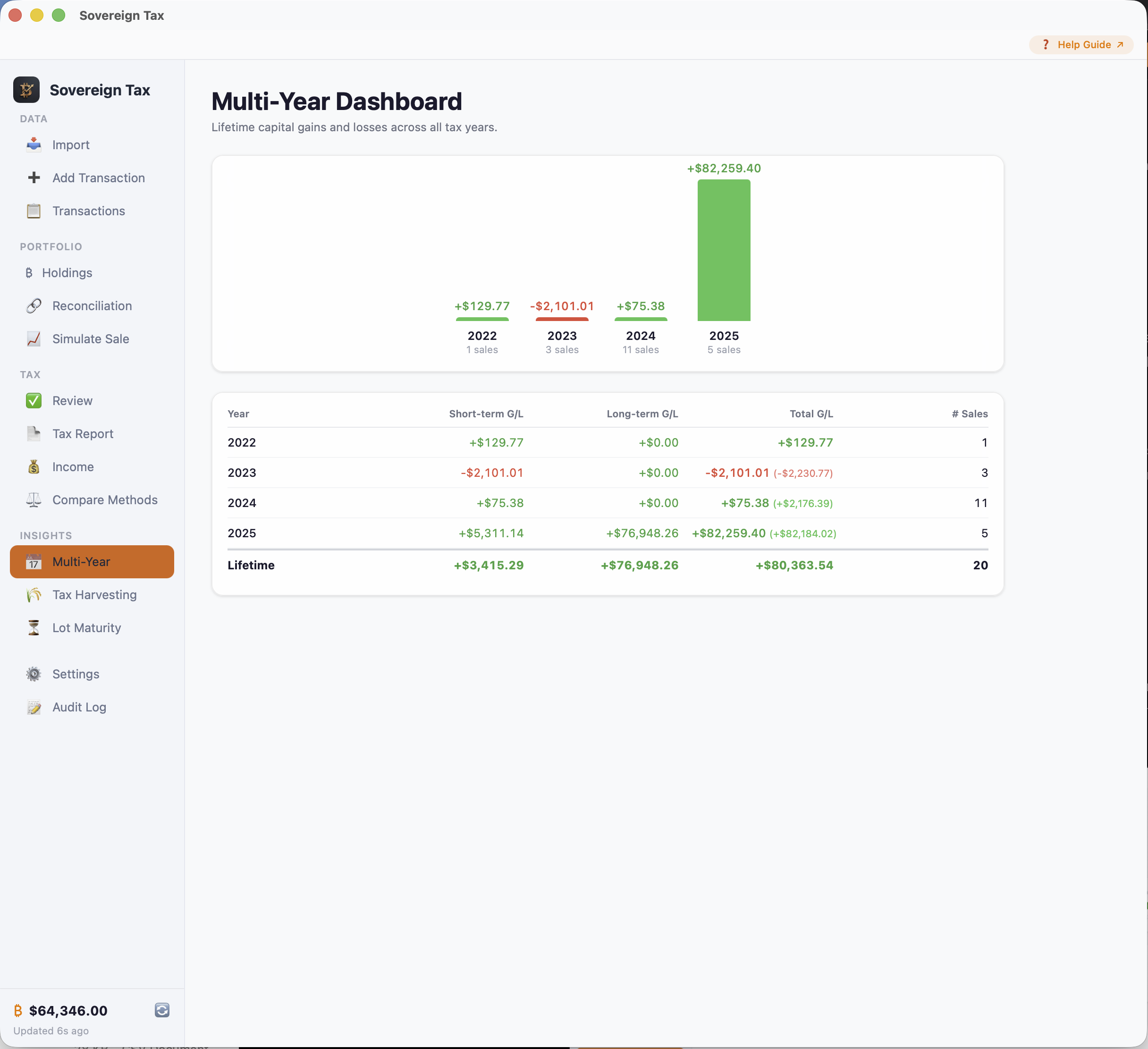
The Multi-Year Dashboard gives you a panoramic view of your Bitcoin tax history across every year you've been trading. It displays a bar chart with green bars (gains) and red bars (losses) for each year, plus a detailed table with short-term, long-term, and total columns.
How to Use It
Open the view and it automatically computes gains and losses for every tax year in your data. Year-over-year deltas help you spot trends — whether your gains are increasing, decreasing, or whether you have carryforward losses from prior years.
How it benefits you: Understanding your multi-year tax picture helps with planning. If you had large gains last year, you might prioritize harvesting losses this year. If you have capital loss carryforward from previous years, you can see how it offsets current-year gains. This view turns years of scattered trading activity into a clear financial picture.
Lot Maturity
What It Is
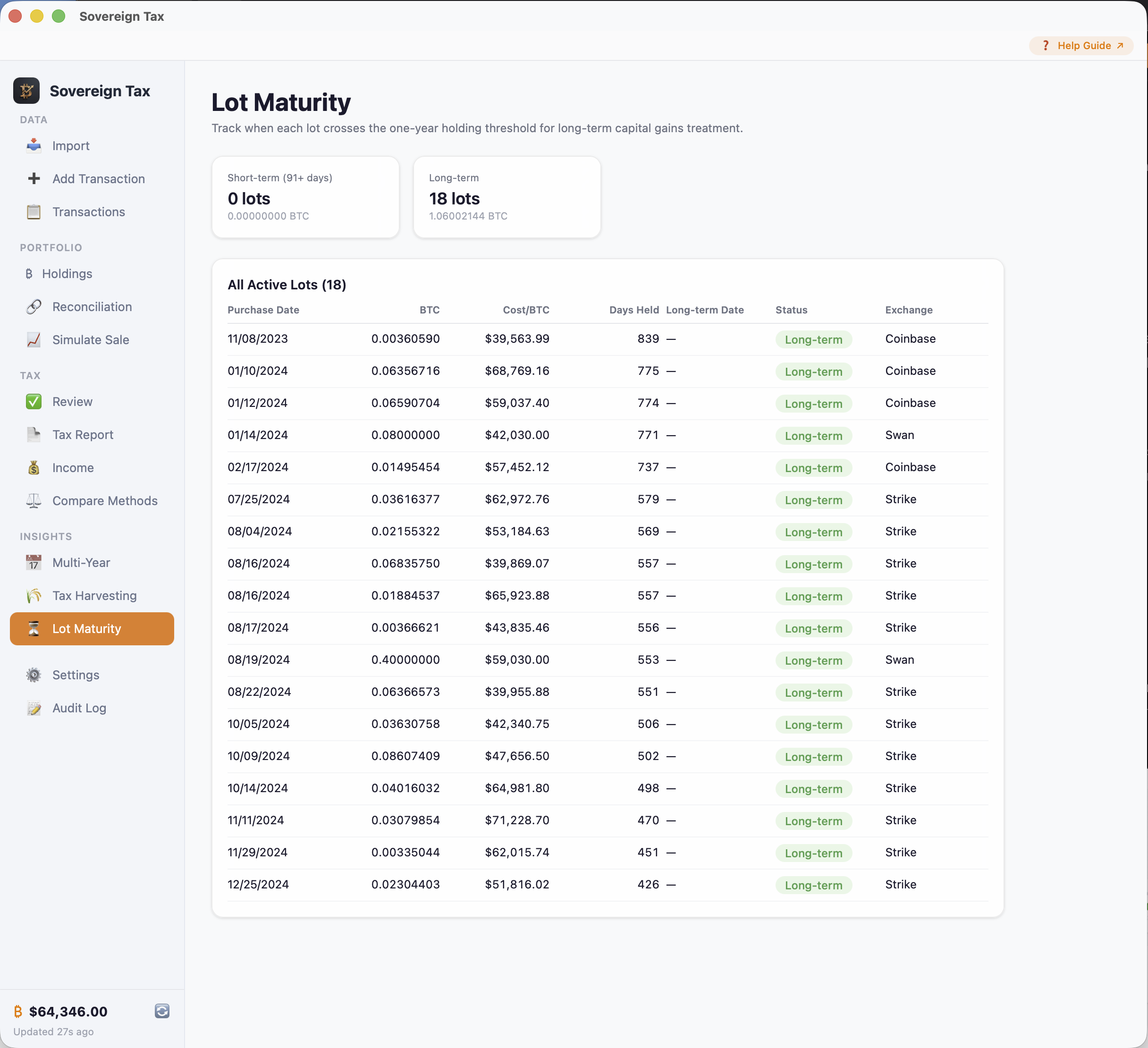
The Lot Maturity view is a countdown timer for each of your BTC lots, showing exactly when they cross the one-year long-term threshold. It displays every lot with its purchase date, maturity date, days remaining, and a color-coded status badge.
How to Use It
Open the view to see all your lots sorted by maturity date. Lots approaching the long-term threshold are highlighted so you can decide whether to wait before selling.
How it benefits you: The difference between short-term and long-term tax rates can be enormous. Short-term gains are taxed at up to 37%, while long-term gains are taxed at 0–20%. If you have a lot that matures in 10 days, waiting those 10 days could save you thousands in taxes. This view makes that information impossible to miss.
Lots are color-coded:
- Red — 30 days or less until long-term
- Orange — 31 to 90 days
- Blue — 91+ days remaining (short-term)
- Green — Already long-term
Income Tracking
What It Is
The Income view aggregates all BTC received as mining income, staking rewards, hard forks, or interest for a given tax year. It shows the total BTC received, total fair market value in USD at the time of receipt, and a breakdown by income type.
How to Use It
Select a tax year to see all income-type transactions for that period. You can export an Income CSV formatted for Schedule 1 reporting.
How it benefits you: Mining income, staking rewards, and interest are taxed as ordinary income, which is reported differently from capital gains. This view separates that income automatically so you have the exact numbers you need for Schedule 1 of your tax return, without manually sifting through transactions.
Audit Log
What It Is
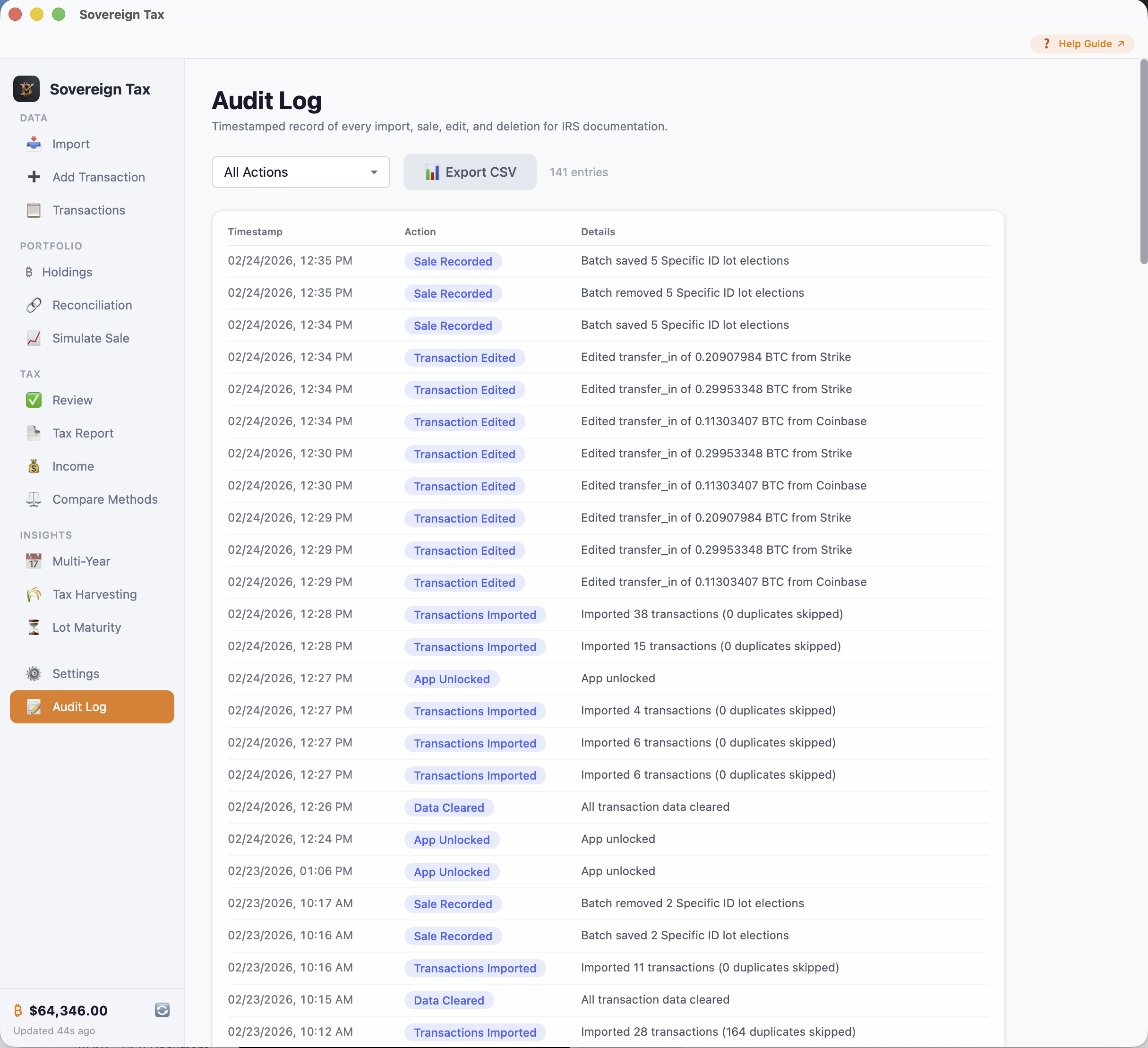
The Audit Log is a tamper-evident, timestamped record of every action you take in the app — imports, edits, deletions, recorded sales, PIN changes, and backups. Think of it as a digital paper trail that proves exactly what you did and when.
How to Use It
Open the Audit Log from the sidebar. You can filter entries by action type (import, edit, delete, sale, etc.) and export the entire log as a CSV for your records.
How it benefits you: If the IRS ever questions your tax filings, the audit log provides documentation showing how your data was entered and when. This level of record-keeping demonstrates due diligence and may support your position during an audit. The IRS recommends maintaining records for at least 3 years (or 6 years if income is underreported by more than 25%).
Tip: Keep your audit log
The IRS recommends maintaining records for at least 3 years (or 6 years if income is underreported by more than 25%). The audit log provides a complete history of all changes to your data.
Wallets & Transfers
This section addresses one of the most common questions Bitcoin holders have: "I bought BTC on an exchange and transferred it to my own wallet — how does that affect my taxes?" The short answer is that transfers between your own wallets are not taxable. Below is a detailed explanation of how wallet tracking, transfers, and reconciliation work.
Per-Wallet Cost Basis
Effective January 1, 2025, IRS Treasury Decision 9989 requires per-wallet and per-account cost basis tracking. This means when you sell BTC, the app can only use lots from the same wallet the sale is occurring in.
Sovereign Tax enforces this automatically. When you sell from "Coinbase," only lots tagged as "Coinbase" are available. When you sell from "Cold Storage," only lots tagged as "Cold Storage" are used.
IRS: Per-Wallet Rules (TD 9989)
Starting in 2025, brokers must track cost basis per account. If you hold BTC across multiple wallets or exchanges, each wallet maintains its own pool of lots for cost basis purposes. This does not change your total tax liability — it determines which specific lots are sold when you dispose of BTC from a particular wallet.
Transfers Are Not Taxable
Moving BTC between your own wallets or exchanges is not a taxable event. No gain or loss is realized. The cost basis of the BTC stays the same regardless of where it's stored (IRS FAQ 81).
For example, if you buy 1 BTC on Coinbase at $50,000 and transfer it to your cold storage wallet, the cost basis is still $50,000 — it doesn't change because you moved it. The holding period also carries over, so time spent on the exchange counts toward the 1-year long-term threshold.
Source Wallet Assignment & Lot Re-Tagging
When you transfer BTC between wallets, the lots need to move too. Under IRS per-wallet rules (effective 2025), each wallet maintains its own pool of lots. If you buy on Coinbase and transfer to cold storage, then later sell from cold storage, the app needs to know those lots originated from Coinbase so it can re-tag them to cold storage.
This is what Source Wallet Assignment does. You tell the app where each Transfer In came from, and the engine automatically re-tags the lots from the source wallet to the destination wallet — preserving cost basis and holding period per IRS FAQ 81.
How It Works
Find your Transfer In rows
Go to Transactions. Transfer In rows that need a source wallet assignment are highlighted in red. A red banner at the top tells you how many need attention.
Click "Assign"
Each unassigned Transfer In row has a red "Assign" button. Click it to open the Source Wallet Modal.
Select the source wallet
A dropdown shows all your wallets and exchanges (excluding the destination). Select the one the Bitcoin came from — for example, if this is a deposit into "Cold Storage" that came from "Coinbase", select "Coinbase".
Save — lots are re-tagged automatically
Click Save. The cost basis engine re-tags lots from the source wallet to the destination wallet in FIFO order. If the transfer amount is less than the source wallet's total, only enough lots are consumed to cover the transfer. Partial lots are split proportionally with cost basis carried over.
Tip: Check Holdings after assigning
After assigning source wallets, open Holdings to verify your lots are now tagged to the correct wallets. If you transferred all BTC from Coinbase to cold storage, Coinbase should show 0 lots and cold storage should show all of them with the original cost basis intact.
IRS: FAQ 81 — Self-Transfers
The IRS confirms that transferring cryptocurrency between your own wallets or accounts is not a taxable event. When you assign a source wallet on a Transfer In, Sovereign Tax carries over the original cost basis and holding period from the source lots — exactly as the IRS requires. No gain or loss is recognized.
Why Source Wallet Assignment Cannot Be Automated
A common question is: "Why can't the app just figure out which wallet the BTC came from?" There are several fundamental reasons why this must be done manually:
- Exchange CSVs do not include destination information. When you withdraw BTC from Coinbase to your Trezor, Coinbase's CSV shows a "Transfer Out" — but it does not name the destination. It only records the on-chain address, which the app cannot map to a wallet name.
- Cold storage wallets often have no CSV at all. Hardware wallets (Trezor, Ledger, etc.) and self-custody setups typically do not produce importable transaction files. The Transfer In at the destination wallet is usually added manually.
- Only you know your wallet topology. The app sees wallet names as text labels ("Coinbase", "Trezor", "Cold Storage"), but it has no way to know which of your wallets are connected by real-world transfers. You might have multiple Coinbase accounts, wallets you share with a spouse, or intermediate hops (exchange → hot wallet → cold storage) that only you understand.
- On-chain data is not available. Sovereign Tax is a privacy-first desktop app — it does not connect to the blockchain. Even if it did, mapping on-chain addresses to named wallets is unreliable and privacy-invasive. The IRS requires you to maintain your own records of wallet-to-wallet movements.
- Transfer fees complicate matching. When you withdraw 0.5 BTC and the network fee takes 0.0001, the exchange CSV shows 0.5 BTC out but your cold storage receives 0.4999 BTC. These amounts don't match exactly, so even automated matching produces ambiguous results that need human confirmation.
This is why Sovereign Tax takes the explicit, user-driven approach: you tell the app where each Transfer In came from, and the engine handles the lot re-tagging automatically. This is more reliable than any automated guessing and gives you full control over your IRS records.
Smart Suggestions
While the assignment itself is manual, the app helps you make the right choice. When you click "Assign" on a Transfer In, the Source Wallet Modal shows smart suggestions based on the reconciliation engine's transfer matching:
- Green "Suggested" badge: A confident match was found — a Transfer Out from another wallet with a near-exact BTC amount within a 7-day window. This is almost certainly the correct source wallet.
- Yellow "Possible match" badge: A match was found but flagged — typically because of an unusually high implied fee between the outgoing and incoming amounts. Double-check before accepting.
- No badge: All other wallets are listed alphabetically. Pick the correct one based on your own records.
The suggestions save time by putting the most likely source wallet at the top of the list, but the final decision is always yours.
Exchange to Cold Storage: Step by Step
This is the most common transfer scenario. Here's the complete workflow, including the source wallet assignment:
Export and import your exchange CSV
Download your transaction history CSV from the exchange (e.g., Swan, Coinbase). Import it into Sovereign Tax with the exchange name filled in. The app will classify your purchases as "Buy" and your withdrawals as "Transfer Out".
Add a Transfer In for your cold storage
Go to Add Transaction and record a Transfer In for the same BTC amount, using your cold storage wallet name (e.g., "Trezor", "Cold Storage"). Use the same date as the withdrawal. If your cold storage wallet exports CSVs (some do), you can import that instead.
Assign the source wallet
In Transactions, find the Transfer In row (highlighted in red) and click "Assign". Select the exchange it came from (e.g., "Swan"). Click Save. The lots are now re-tagged from Swan to your cold storage wallet.
Verify in Holdings and Reconciliation
Open Holdings to confirm lots are now under your cold storage wallet with the original cost basis. Open Reconciliation to see the matched transfer pair. When you later sell from cold storage, the engine will find the correct lots.
Tip: You can change or clear assignments
Already assigned a source wallet but picked the wrong one? Click the green "← Coinbase" label on the Transfer In row to reopen the modal. You can change the source wallet or click "Clear Assignment" to remove it entirely.
Choosing Specific Lots for Transfers
By default, when you assign a source wallet on a Transfer In, the engine moves lots in FIFO order (oldest first). But sometimes you need to control exactly which lots move between wallets. This is especially important when you have multiple lots at different cost bases and want to maintain precise provenance as BTC moves through cold storage.
Why This Matters
Consider this common scenario: you have two purchases on Coinbase — 0.5 BTC bought in January at $30,000 and 0.5 BTC bought in February at $50,000. You want to move the January lot (with the lower cost basis and longer holding period) to cold storage, but FIFO would also grab the January lot by default. What if you specifically want to move the February lot instead? Or what if you want to track a particular lot through multiple hops — exchange to cold storage, then cold storage to another exchange for sale — and know exactly which lot you're selling?
Specific lot selection for transfers gives you this control. The cost basis, purchase date, and holding period all travel with the lot, so when you eventually sell, the tax calculation is precise.
How to Choose Specific Lots
Open the Source Wallet Modal
On a Transfer In row in Transactions, click "Assign" (or click an existing green source wallet label to edit). Select which wallet the BTC came from.
Check "Choose specific lots to transfer"
After selecting a source wallet, a checkbox appears: "Choose specific lots to transfer." Check it to open the lot picker. This shows all available lots in the source wallet at the time of the transfer, with their purchase date, cost basis, days held, and short-term/long-term status.
Select the lots you want to move
Check the lots you want to transfer and enter the amount for each. The lot picker shows your target amount and how much you've selected. You can use the Optimize button to auto-select lots, or pick them manually. You don't have to select enough lots to cover the full transfer amount — any remainder is filled automatically via FIFO (oldest first).
Confirm and save
Click Confirm Selection in the lot picker, then Save in the modal. The Transfer In row now shows "Specific ID" instead of "FIFO" next to the source wallet label, indicating your explicit lot choices are recorded.
Tip: FIFO fills the gap automatically
You don't have to select lots covering the entire transfer amount. If you pick 0.3 BTC worth of lots for a 0.5 BTC transfer, the remaining 0.2 BTC is automatically filled from the oldest available lots in the source wallet (FIFO). Transfers are not taxable events, so this FIFO fallback is always safe — it only affects which lots end up at which wallet.
Multi-Hop Example: Exchange → Cold Storage → Exchange → Sale
This is the primary use case. Here's a complete walkthrough tracking a specific lot through multiple transfers:
Buy on Coinbase
You buy 0.5 BTC at $30,000 in January and 0.5 BTC at $50,000 in February. Both lots are tagged to "Coinbase."
Transfer to cold storage (pick the $50k lot)
You withdraw 0.5 BTC to your Ledger. Add a Transfer In at "Ledger" for 0.5 BTC. Click Assign, select "Coinbase", check "Choose specific lots", and select the February lot ($50,000 cost basis). Save. The $50k lot is now at Ledger; the $30k lot stays at Coinbase.
Transfer to Kraken for sale (pick the same lot)
Later you move the BTC from Ledger to Kraken. Add a Transfer In at "Kraken" for 0.5 BTC. Assign source "Ledger", choose specific lots, and select the lot that's now at Ledger (originally the $50k February purchase). Save. The lot is now at Kraken with its original $50,000 cost basis and January purchase date intact.
Sell on Kraken
You sell 0.5 BTC at $60,000 from Kraken. The engine finds the $50k lot (which traveled Coinbase → Ledger → Kraken). Your gain is $10,000 (= $60k − $50k), and the holding period counts from the original February purchase date. If you had used FIFO at every step, the $30k January lot would have moved instead, producing a $30,000 gain — three times as much.
IRS: Specific Identification & Transfers
The IRS permits taxpayers to use Specific Identification to designate which units of cryptocurrency are being disposed of (IRS FAQ, Rev. Rul. 2019-24). While transfers between your own wallets are non-taxable events (IRS FAQ 81), choosing which lots to transfer affects which lots are available for sale at each wallet — and therefore which cost basis is used when you eventually sell. Sovereign Tax preserves the original cost basis and holding period through every transfer, exactly as the IRS requires.
What Happens When You Edit a Transfer
If you change the source wallet, amount, or date on a Transfer In that has specific lot selections, those selections are automatically cleared because they may no longer be valid. You'll need to re-select lots after the edit. This also applies downstream: if you edit an earlier transfer in a multi-hop chain, lot selections on later transfers are cleared as well.
Similarly, if you delete or edit a Buy transaction that a transfer's lot selections reference, those selections are automatically removed. The engine's safety net ensures that even if stale data somehow persists, lots that can't be found are skipped with a warning and FIFO fills in — tax calculations are never incorrect.
Reconciliation View
What It Is
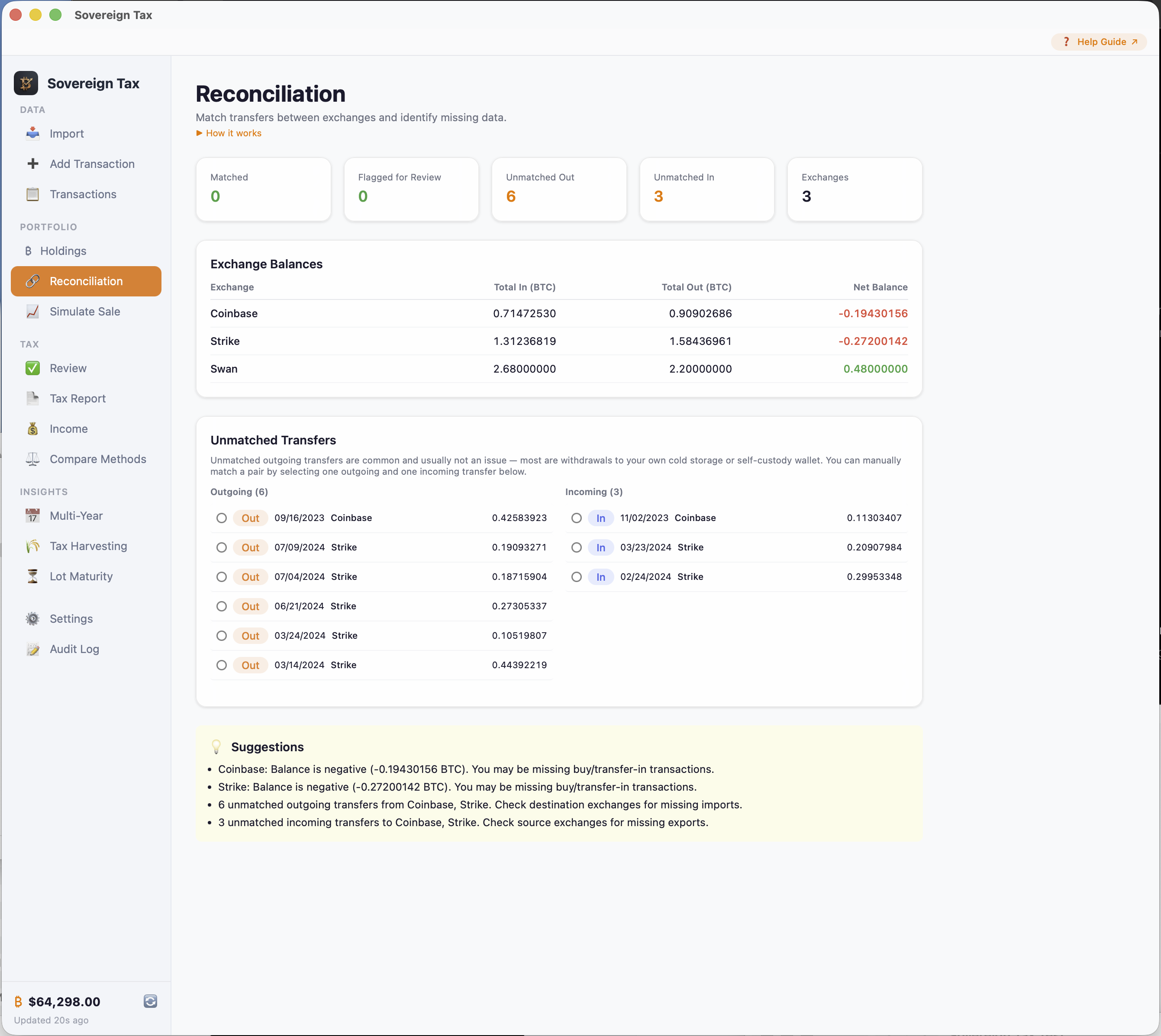
The Reconciliation view is your data integrity tool. It cross-references all your transfers to match outgoing withdrawals with incoming deposits, calculates per-exchange BTC balances, and flags potential issues in your data.
How to Use It
Open the Reconciliation view after importing from all your exchanges. Review the summary cards at the top, then check the details:
- Matched Transfers: A withdrawal from one exchange paired with a deposit at another, within a 7-day window and near-exact BTC amount match.
- Unmatched Outgoing: Withdrawals without a matching incoming transfer. Common for cold storage withdrawals — usually not a problem.
- Unmatched Incoming: Deposits without a matching outgoing transfer. May indicate a missing CSV import from the source exchange.
- Exchange Balances: Net BTC per exchange. A negative balance may indicate missing buy or transfer-in data.
How it benefits you: Incomplete data leads to incorrect tax reports. Reconciliation catches problems early — like a missing CSV import from an exchange you forgot about, or a negative balance that indicates missing purchases. Fixing these issues before filing ensures your tax report is accurate and defensible.
Warnings & How to Fix Them
Sovereign Tax shows warnings when your transfer data is incomplete or when the per-wallet cost basis calculation has to use a fallback. Here's what each warning means and how to resolve it:
Red Banner: Unassigned Transfer In
Appears at the top of Transactions and Tax Report when one or more Transfer In transactions have not been assigned a source wallet.
- What it means: The engine cannot re-tag lots to the correct wallet. Lots stay in the source wallet, and any sale from the destination wallet may trigger a wallet mismatch.
- How to fix: In Transactions, find the red-highlighted Transfer In rows and click "Assign" to set the source wallet.
Yellow Banner: Wallet Mismatch
Appears at the top of Transactions and Tax Report when one or more sales used lots from a different wallet than the one the sale occurred in.
- What it means: The app fell back to a global lot pool because no lots were found in the selling wallet. This happens when BTC was transferred to a wallet but the Transfer In's source wallet was never assigned, so the lots were never re-tagged.
- How to fix: Find the Transfer In that moved BTC to the selling wallet, click "Assign", and select which wallet it came from. Once lots are re-tagged, the mismatch resolves.
- IRS implication: The global lot pool fallback uses the "universal method" that Treasury Reg. §1.1012-1(j) explicitly prohibits for 2025+. Fix wallet mismatches before filing.
Yellow Icons: Per-Sale Mismatch
Individual sale rows in Transactions and Tax Report show a yellow «⚠» icon when that specific sale used the global lot pool fallback.
- How to fix: Same as above — assign the source wallet on the relevant Transfer In.
Yellow Box in Edit Lots Modal
When editing lot selections for a sale whose wallet has no lots, the lot picker shows a yellow warning explaining that it's displaying lots from all wallets as a fallback. It includes the specific fix instructions.
Yellow Box in Optimize All Modal
When using Optimize All (in Transactions or Tax Report), if any sales triggered the wallet mismatch fallback, a yellow warning appears in the results modal showing how many were affected. You can still apply the optimizations, but the warning recommends fixing transfers first.
Export Area Warning
Before the export buttons in Tax Report, a yellow message appears when wallet mismatches are present. All exported documents (PDF, CSV, TXF) include a disclaimer noting the affected sales.
Recommended: Fix transfers before filing
While the app allows you to generate tax reports with wallet mismatches present (warn-and-allow approach), the IRS per-wallet rules require lots to match the wallet they are sold from. Assign source wallets on all Transfer In transactions before exporting your final tax report.
Recommended Tax Preparation Workflow
For the most accurate and IRS-compliant tax report, follow this workflow in order:
Import all exchange CSVs
Import a CSV from every exchange and wallet where you bought, sold, or received BTC during the tax year. Use consistent exchange names across imports (e.g., always "Coinbase", not sometimes "coinbase" or "CB"). For cold storage or self-custody wallets that don't have CSVs, manually add the Transfer In transactions.
Assign source wallets on all Transfer Ins
Go to Transactions (or the Review view) and find all Transfer In rows highlighted in red. Click "Assign" on each one and select which wallet the BTC came from. The engine re-tags the lots to the correct destination wallet. This step is essential for IRS per-wallet compliance.
Verify in Review
Open the Review view. It shows a guided checklist: unassigned transfers, wallet mismatches, lot optimization status, and whether you're ready to file. Work through each section until all items are green.
Optimize lots with Specific ID (optional)
If you want to minimize taxes, go to Compare Methods to see how much Specific ID could save you. Then click Optimize All in Transactions or Tax Report to batch-assign tax-optimal lots to all sells. See the Specific ID Guide.
Export your Tax Report
Open Tax Report, select the tax year, and export in your preferred format (PDF, CSV, TurboTax). All wallet mismatch warnings should be resolved before exporting. Hand the report to your accountant or file directly.
Tip: Use the Review view as your checklist
The Review view tracks your progress through all these steps. When every section shows a green checkmark, you know your data is clean and your tax report is ready to file.
Security & Backup
What This Section Covers
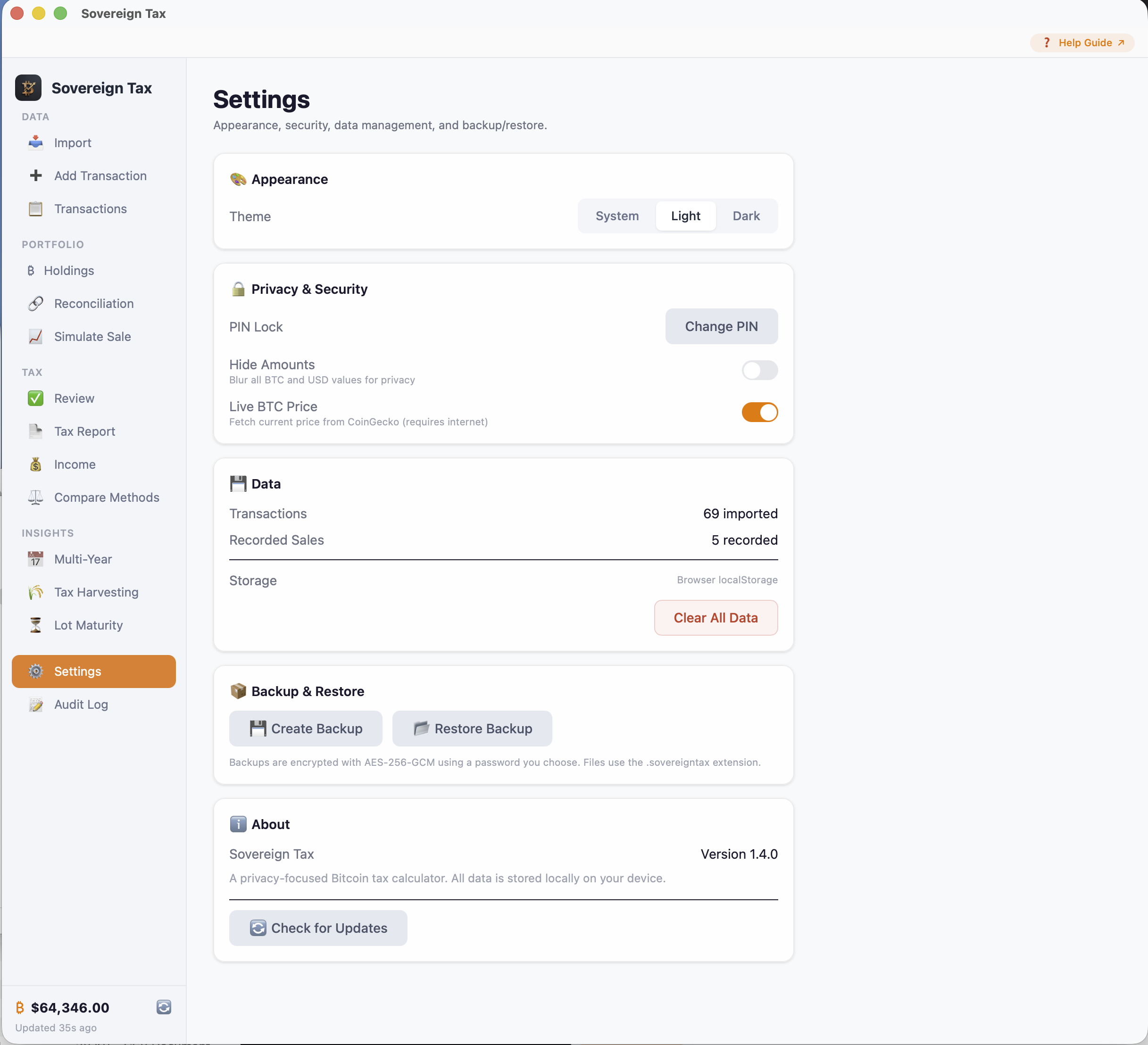
Sovereign Tax is designed with a zero-trust security model. Your financial data never leaves your device, there are no user accounts to breach, and all sensitive data is encrypted with AES-256-GCM cryptography. The Settings view gives you full control over your security, privacy, backups, and display preferences.
Encryption
All sensitive data is encrypted with AES-256-GCM. Your PIN is used to derive an encryption key via PBKDF2 with 600,000 iterations — a widely-used standard in security applications.
The PIN itself is never stored. Only the encrypted salt is kept, which is useless without your PIN.
What Gets Encrypted
| Data | Encrypted? |
|---|---|
| Transactions | Yes — AES-256-GCM |
| Recorded Sales | Yes — AES-256-GCM |
| Column Mappings | Yes — AES-256-GCM |
| Import History | Yes — AES-256-GCM |
| Audit Log | Yes — AES-256-GCM |
| Preferences (theme, method) | No — plaintext |
| Price Cache | No — plaintext |
Changing Your PIN
You can change your PIN at any time from Settings. When you change your PIN, the app:
- Decrypts all data with your old key
- Derives a new encryption key from your new PIN
- Re-encrypts all data with the new key
This is a seamless process — no data is lost.
Privacy Blur
Toggle "Hide Amounts" in Settings to blur all BTC and USD values on screen. Useful when screen sharing, presenting, or using the app in public.
Backup & Restore
Create encrypted backups of all your data from Settings > Backup & Restore:
- Create Backup: Exports a
.sovereigntaxfile containing all your transactions, sales, mappings, import history, audit log, and preferences. - Restore Backup: Select a
.sovereigntaxfile to restore. A confirmation dialog prevents accidental overwrites.
Backups are encrypted with a separate backup password that you set when creating the backup — you must enter that same password to restore. Store it safely, as it cannot be recovered.
Store backups securely
Backup files contain your complete transaction history. Store them in a secure location — an encrypted drive, a password manager's secure notes, or similar. Do not share them.
Theme
Choose between System (follows your OS preference), Light, and Dark themes in Settings.
Live BTC Price
The live price toggle fetches the current BTC price from CoinGecko. When disabled, the app operates fully offline. When enabled, only a simple price request is made — no personal data is sent.
Common Scenarios
Here are some real-world situations and how to handle them in Sovereign Tax.
Getting Paid in BTC for Work
If you receive Bitcoin as payment for freelance work, salary, or services, this is ordinary income taxed at the fair market value (FMV) on the date you received it.
- Go to Add Transaction
- Select type: Buy
- Enter the amount of BTC received and the $/BTC price on that date
- Set Income Type to Mining
The FMV at receipt becomes your cost basis for future sales. This income appears on the Income view (Schedule 1).
Selling Goods for BTC (e.g., Facebook Marketplace)
If someone pays you in Bitcoin for a physical item you sold, the tax treatment is the same as getting paid for work — you acquired BTC, and its FMV at receipt is taxable as ordinary income.
- Add a Buy transaction at the FMV ($/BTC) when you received the Bitcoin
- Set Income Type to Mining
The sale of the physical item itself is outside crypto tax scope. Your cost basis for the BTC is the fair market value on the date you received it.
Receiving BTC from a Giveaway or Promotional Reward
Promotional rewards from apps like Strike, Coinbase Earn, or exchange sign-up bonuses are taxable as ordinary income at FMV when received.
- Add a Buy transaction with the dollar value of the reward as the price
- Set Income Type to Reward
For example, if Strike gave you $20 in sats, enter a Buy for that amount of BTC at the $/BTC rate that equals $20. That $20 is both your taxable income and your cost basis if you sell later.
Frequently Asked Questions
How do I export my CSV from Coinbase?
Log in to Coinbase, go to Account > Statements (or Reports > Transaction history in the new UI). Select your date range and click Generate Report. Download the CSV file and import it into Sovereign Tax.
How do I export my CSV from Kraken?
Log in to Kraken, go to History > Export. Select "Ledgers" or "Trades" for your date range. Download the CSV file. Sovereign Tax handles Kraken's dual-column format (Received/Sent currency) automatically.
How do I export my CSV from Strike, Cash App, or Swan?
Strike: Go to Settings > Transaction History > Export. Cash App: Go to Activity tab, tap the download icon, select date range. Swan: Go to History > Download CSV. All three formats are auto-detected by Sovereign Tax.
My import shows "missing required fields"
This means one or more required columns haven't been mapped. You need Date, Amount, and either Price or Total at minimum. Use the dropdown menus next to each field to select the matching column from your CSV. Once all required fields are mapped, the warning will clear and you can import.
Why does Reconciliation show a negative exchange balance?
A negative balance means you have more BTC going out (sells + transfers out) than coming in (buys + transfers in) for that exchange. This usually indicates missing import data — check if there are older purchase CSVs you haven't imported yet.
What happens if I change my accounting method?
All tax calculations are recalculated instantly based on the new method. This does not affect previously recorded sales (which store the method that was used at the time of recording). You can freely switch between methods while exploring, but the IRS expects consistency within a tax year when filing.
Can I import from multiple exchanges?
Yes. Import each exchange's CSV separately. The app merges all transactions and handles per-wallet cost basis tracking across exchanges automatically. Duplicates are detected and skipped.
How do transfers affect my cost basis?
Transfers between your own wallets are non-taxable movements (IRS FAQ 81). The cost basis and holding period stay exactly the same. However, under the 2025 per-wallet rules, the lots must be re-tagged to the destination wallet so the engine knows where they are when you sell. This happens automatically when you assign a source wallet on a Transfer In — see Wallets & Transfers for the step-by-step guide.
Can I choose which specific lots to transfer between wallets?
Yes. When you assign a source wallet on a Transfer In, check the "Choose specific lots to transfer" checkbox to open the lot picker. You can select exactly which lots move to the destination wallet instead of defaulting to FIFO (oldest first). This is useful when you have lots at different cost bases and want to track a particular lot through cold storage and back to an exchange for sale. Any amount you don't explicitly select is filled by FIFO automatically. See Choosing Specific Lots for Transfers for the full walkthrough.
What is a mixed-term sale?
When a single sale uses lots from both short-term and long-term holding periods. For example, selling 1 BTC where 0.6 BTC was held for 8 months (short-term) and 0.4 BTC was held for 2 years (long-term). Sovereign Tax automatically splits these into separate line items on Form 8949.
Where is my data stored?
All data is stored locally in your device's local encrypted storage, encrypted with AES-256-GCM. Nothing is ever sent to any server. There is no cloud, no account, and no telemetry. Your data lives on your machine and nowhere else.
How do I update the app?
Go to Settings > About > Check for Updates. If a new version is available, you'll see the release notes and a link to download the latest version from sovereigntax.io.
What if I lose my PIN?
Your data cannot be recovered without the PIN. This is by design — there are no backdoors, no cloud recovery, and no "forgot PIN" option. We recommend writing your PIN down and storing it securely. If you created a backup file before losing your PIN, you can restore from that backup after clearing the app data.
How do I record a charitable Bitcoin donation?
Go to Add Transaction, select the Donation type, enter the date, BTC amount, and Fair Market Value per BTC on the date of donation. Choose an accounting method (or use Specific ID to pick exact lots), preview which lots will be consumed, and save. The donation appears in the Tax Report's Charitable Donations section with a Form 8283 CSV export.
Are Bitcoin donations taxable?
No. Donating BTC to a qualified charity is not a taxable event — no capital gain or loss is recognized. Instead, you may claim a charitable deduction. If you held the BTC for more than one year, the deduction is at Fair Market Value (limited to 30% of AGI). If held one year or less, the deduction is limited to your cost basis. Sovereign Tax tracks these details automatically and exports them for Form 8283.
What is Fair Market Value (FMV) and why is it required for donations?
FMV is the price the Bitcoin would sell for on the open market on the date of donation. It's required because the IRS uses FMV to determine your charitable deduction amount. When adding a donation, enter the FMV per BTC on that specific date. You can fetch the historical price from CoinGecko if live pricing is enabled.
How should I handle network fees on transfers and donations?
The IRS treats network fees (on-chain or Lightning) differently depending on the transaction type:
- Self-transfers (e.g., Coinbase → Ledger): The network fee paid in BTC is a separate micro-disposition — a tiny taxable event where you "spent" BTC to pay for the mining service. The IRS explicitly prohibits adding transfer fees to the cost basis of the transferred lots (IRS FAQ on Digital Assets). In practice, these amounts are usually negligible (a few cents to a few dollars).
- Charitable donations: Your charitable deduction is based on the FMV of the BTC the charity receives. The network fee is excluded from the deduction amount and is treated as a separate micro-disposition, same as transfers.
- Sales: Exchange fees on purchases are already included in your cost basis (Sovereign Tax handles this automatically via the Fee field). Fees on sales reduce your amount realized.
For transfers and donations, the network fee amounts are typically very small. If you want to be precise, you can record the fee as a separate tiny Sell transaction for the fee amount. Most users and CPAs consider this immaterial and skip it.
Does Sovereign Tax support other cryptocurrencies?
No. Sovereign Tax is Bitcoin-only by design. If you import a CSV with other cryptos (ETH, SOL, etc.), those rows are automatically filtered out. Only BTC and XBT transactions are processed.
Can I undo a recorded sale?
Yes. Go to Transactions, find the sell transaction, and click Del > Delete. The lots consumed by that sale are automatically restored — the cost basis engine rebuilds from all remaining transactions, so deleting a sale puts your lots back exactly as they were before. The deletion is recorded in the Audit Log.
How do I use Specific ID to choose which lots to sell?
There are 5 ways to use Specific ID in Sovereign Tax: Optimize All (batch-assign optimal lots in Transactions), Edit Lots (per-transaction in Transactions), the Simulate → Record workflow, manual lot picking in Add Transaction, and Compare Methods to see savings. The fastest path is to open Compare Methods, see the savings, then click Optimize All. See the Specific ID Guide for the complete walkthrough.
Can I assign Specific ID lot selections to sells I already imported?
Yes. Go to Transactions, find any sell or donation, and click the "Lots" button. This opens the Edit Lots Modal, which shows you the exact lots that were available at the time of that transaction. Select your lots, preview the tax impact, and save. The sale will use your Specific ID election in all future tax calculations. You can also click "Revert to FIFO" to remove an existing election.
Important IRS note: Under Treas. Reg. §1.1012-1(c) and IRS FAQ 82, Specific ID elections must be made at or before the time of sale. Retroactively assigning lots to a sale that already occurred may not satisfy IRS requirements unless you documented your lot identification before the original transaction. For 2025 transactions, IRS Notice 2025-07 provides temporary relief for record-keeping. For prior years, the IRS default (FIFO) applies to any sale where a contemporaneous Specific ID election was not made.
What does "Assign Source Wallet" mean on Transfer In rows?
When you record a Transfer In (BTC arriving at a wallet), the app needs to know where it came from so it can re-tag the lots to the correct wallet. The "Assign" button opens a modal where you select the source exchange or wallet. For example, if you withdrew from Swan to your Trezor, you'd click Assign on the Trezor Transfer In and select "Swan". The engine then moves Swan's lots to Trezor, preserving cost basis and holding period. This is required for IRS per-wallet cost basis compliance (2025+).
How do I fix wallet mismatch warnings?
Wallet mismatch warnings (yellow banners and icons) appear when a sale used lots from a different wallet because no lots were found in the selling wallet. The fix is:
- Go to Transactions
- Find the Transfer In that moved BTC to the wallet you sold from (look for red-highlighted rows)
- Click the "Assign" button on that Transfer In
- Select which wallet the BTC came from
- Click Save
Once lots are re-tagged to the correct wallet, the mismatch warnings disappear and your tax calculations become per-wallet compliant.
What is lot re-tagging?
Lot re-tagging is what happens when you assign a source wallet on a Transfer In. The cost basis engine finds the lots in the source wallet (in FIFO order), and re-tags them to the destination wallet. If the transfer is a partial amount, lots are split proportionally. The cost basis per BTC and the original purchase date carry over — nothing changes except which wallet the lot belongs to. This is required by IRS FAQ 81 and the 2025 per-wallet cost basis rules (Treasury Reg. §1.1012-1(j)).
Why is the exchange name required when importing?
Starting with the 2025 IRS per-wallet rules, every transaction must be tagged to a specific wallet or exchange. The exchange name you enter during import becomes the wallet tag for all transactions in that CSV. It also saves your column mapping for faster future imports. Use consistent naming across all CSVs from the same exchange (e.g., always "Coinbase", not sometimes "coinbase").
What if I have transfers but no Transfer In recorded?
If you withdrew BTC from an exchange to cold storage but only imported the exchange CSV (which shows a Transfer Out), you need to also record the Transfer In at the destination. Go to Add Transaction, select Transfer In, enter the same BTC amount and date, and specify your cold storage wallet name. Then assign the source wallet on that Transfer In row. Without the Transfer In, the app cannot re-tag lots and may show wallet mismatch warnings when you sell from cold storage.
How do I clear all my data and start over?
Go to Settings > Data > Clear All Data. This permanently deletes all transactions, sales, mappings, and history. You'll be prompted to confirm. Consider creating a backup first.
Why can't the app automatically detect which wallet my BTC came from?
Exchange CSVs do not include destination wallet information — a Coinbase withdrawal just shows "Transfer Out" with an on-chain address. Cold storage wallets often have no CSV at all. And only you know your own wallet topology (which wallets connect to which). The app cannot reliably guess, so you assign the source wallet manually. The app does provide smart suggestions based on amount and timing matching to speed up the process. See Wallets & Transfers for the full explanation.
I used FIFO in prior years. Should I switch to Specific ID now?
Keep prior years as FIFO. If you filed using FIFO (or never made Specific ID elections at the time of sale), those years should remain FIFO in the app. Retroactively assigning Specific ID lots to past-year sells is generally not permitted by the IRS (Treas. Reg. §1.1012-1(c)(1)). You can start using Specific ID for current and future year sells by making the election at or before the time of sale. For 2025 transactions, IRS Notice 2025-07 provides temporary relief for record-keeping. Use the year selector to verify each prior year is clean.
What is the Review view?
The Review view is a guided tax preparation checklist. It scans your data for the selected year and flags four categories of issues: unassigned transfers, wallet mismatches, lot optimization opportunities, and overall readiness to file. Work through each section from top to bottom. When all four sections show green checkmarks, your tax report is clean and ready to export. See Review View for details.
What does the green "Suggested" badge mean when assigning a source wallet?
When you click "Assign" on a Transfer In, the Source Wallet Modal shows smart suggestions from the reconciliation engine. A green "Suggested" badge means a confident match was found — another wallet had a Transfer Out with a near-exact BTC amount within a 7-day window. A yellow "Possible match" badge means a match was found but flagged (usually due to an unusually high implied fee). Wallets without a badge are listed alphabetically for manual selection.
What happens if I edit or delete a Buy transaction that has Specific ID elections?
When you edit a Buy transaction in a way that affects lot eligibility (amount decreased, wallet changed, type changed) or delete it entirely, the app automatically invalidates all Specific ID elections that reference that Buy as a lot source. You'll see a warning directing you to re-assign lots via the Edit Lots button on the affected sells. This prevents stale lot references from producing incorrect tax calculations.
Why does Tax-Loss Harvesting have a wallet filter?
Under the 2025 IRS per-wallet rules, when you sell BTC to harvest a loss, the lots must come from the same wallet the sale occurs in. The wallet filter on the Tax-Loss Harvesting view lets you see per-wallet harvest opportunities accurately. The "All Wallets" view gives a portfolio-wide overview, but actual sales must be executed per-wallet.
Still have questions?
Send a description of your issue along with your Invoice ID (from your Strike receipt or Gumroad order) and we'll get back to you within 24 hours.
support@sovereigntax.io